RELAYTO logo

Embed RELAYTO in Salesforce

This guide explains how to embed the RELAYTO app inside Salesforce Sales Cloud (Lightning Experience) using a Visualforce (VF) page exposed as a tab, and then add that tab to your main Salesforce app.

Who is this for

  • Salesforce Admins (Lightning Experience)
  • RELAYTO workspace admins who want RELAYTO to appear inside Salesforce

What you’ll get

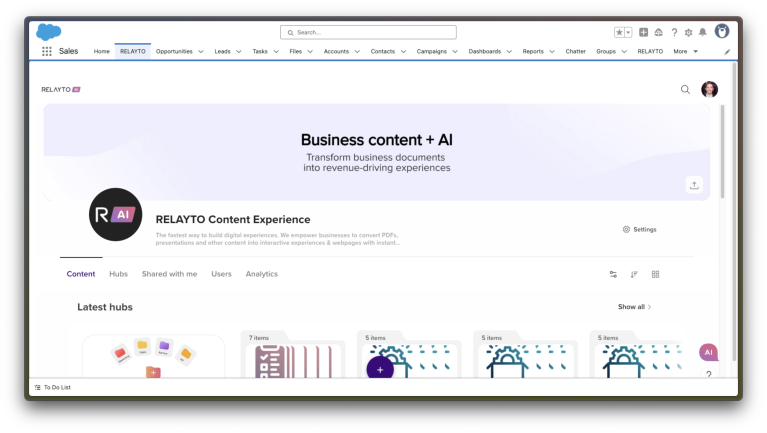
  • A RELAYTO tab in Salesforce that loads your RELAYTO workspace in an iframe.

Prerequisites

  • Salesforce Lightning enabled and you have Customize Application permissions.
  • Your RELAYTO workspace URL, e.g.:
    https://your-subdomain.relayto.com/

Step 1 — Add RELAYTO to Salesforce CSP Trusted Sites

  1. In Salesforce, go to Setup → CSP Trusted Sites → New Trusted Site.
  2. Trusted Site Name: RELAYTO
  3. Trusted Site URL: your RELAYTO base, e.g. https://your-subdomain.relayto.com

  4. Under Directive Options, check all the boxes:
    1. frame-src / connect-src img-src / font-src / style-src
  5. If your RELAYTO experience loads assets from CDNs (e.g., https://cdn.relayto.com), add those as separate trusted sites.

Step 2 — Create the Visualforce page

  1. Navigation: Setup → Visualforce Pages → New
    1. Name: RELAYTO
    2. Label: RELAYTO
  2. Paste this markup and replace https://your-subdomain.relayto.com/  with your workspace URL.:
<apex:page docType="html-5.0" showHeader="false" sidebar="false" lightningStylesheets="true">
    <style>
        html, body, .wrap { height: 100%; margin: 0; }
        iframe { width: 100%; height: 100vh; border: 0; }
    </style>

    <!--
      Replace the src with your RELAYTO experience URL.
      You can safely pass Salesforce context as query params (e.g., user/org/record),
      or use a short-lived signed token generated by your backend.
    -->
    <div class="wrap">
        <iframe
            src="https://your-subdomain.relayto.com/"
            referrerpolicy="no-referrer"
            allow="clipboard-read; clipboard-write; fullscreen"
            sandbox="allow-forms allow-scripts allow-same-origin allow-popups allow-popups-to-escape-sandbox">
        </iframe>
    </div>
</apex:page>

Step 3 — Create a Visualforce Tab

  1. Setup → Tabs → Visualforce Tabs → New
  2. Visualforce Page: RELAYTO_Embed
  3. Tab Label/Name: RELAYTO
  4. Choose a Tab Style (any icon).
  5. Next → select profiles that can see the tab → Save.

Step 4 — Add the tab to the navigation

  1. Setup → App Manager
  2. Find your main Lightning app (e.g., Sales), click ▼ → Edit.
  3. Go to Navigation Items.
  4. In Available Items, find RELAYTO and move it to Selected Items.
  5. Arrange the order (drag to your desired position).
  6. Save.