

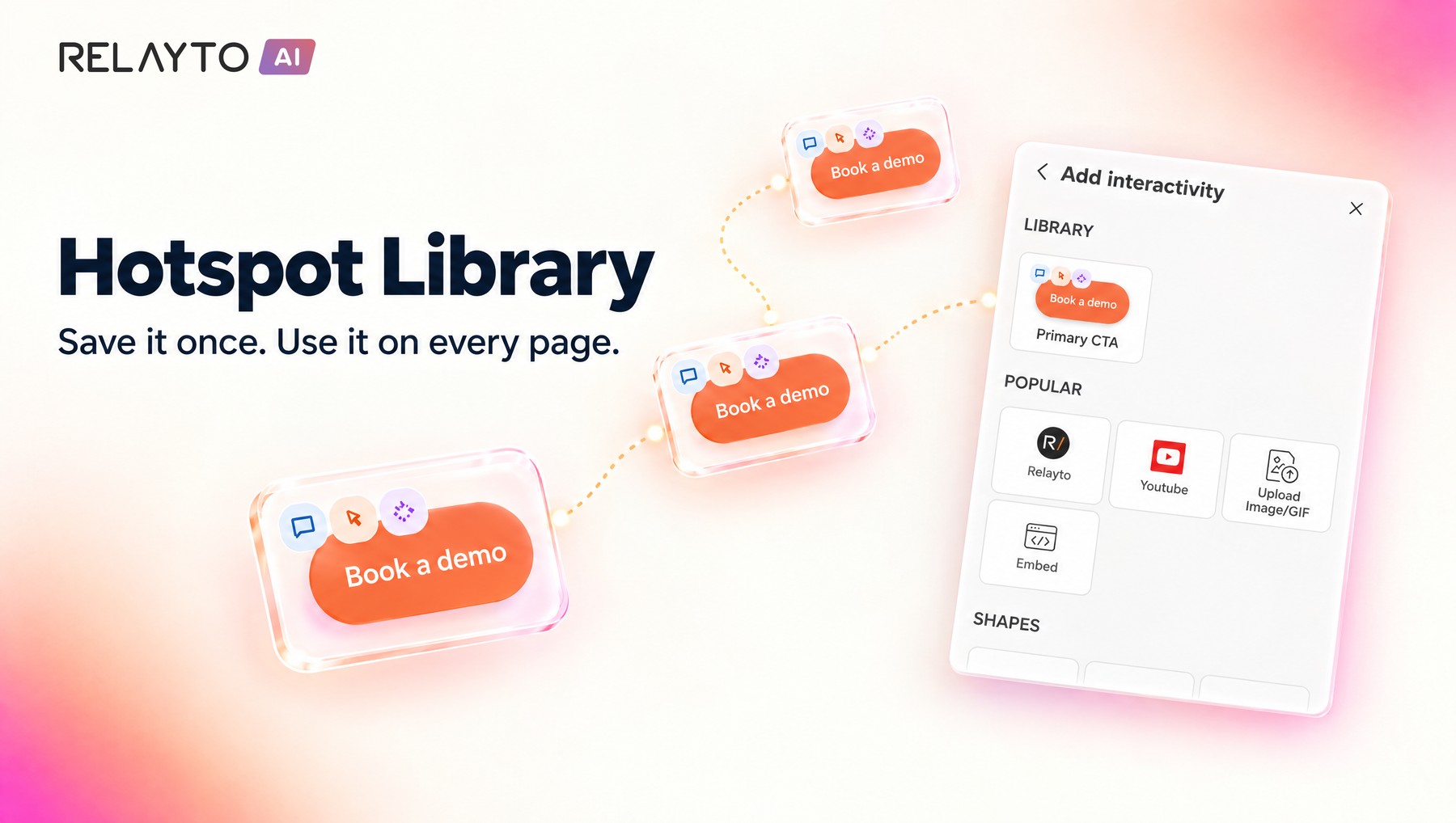
Every team has a few hotspots they use again and again: the main “Book a demo” button, a download link, an info pop-up. Until now, each one had to be rebuilt page by page, and no two pages looked quite the same. With the new Hotspot Library, you can build a branded hotspot library for your corporate workspace, so your team reuses approved, on-brand assets instead of recreating them.
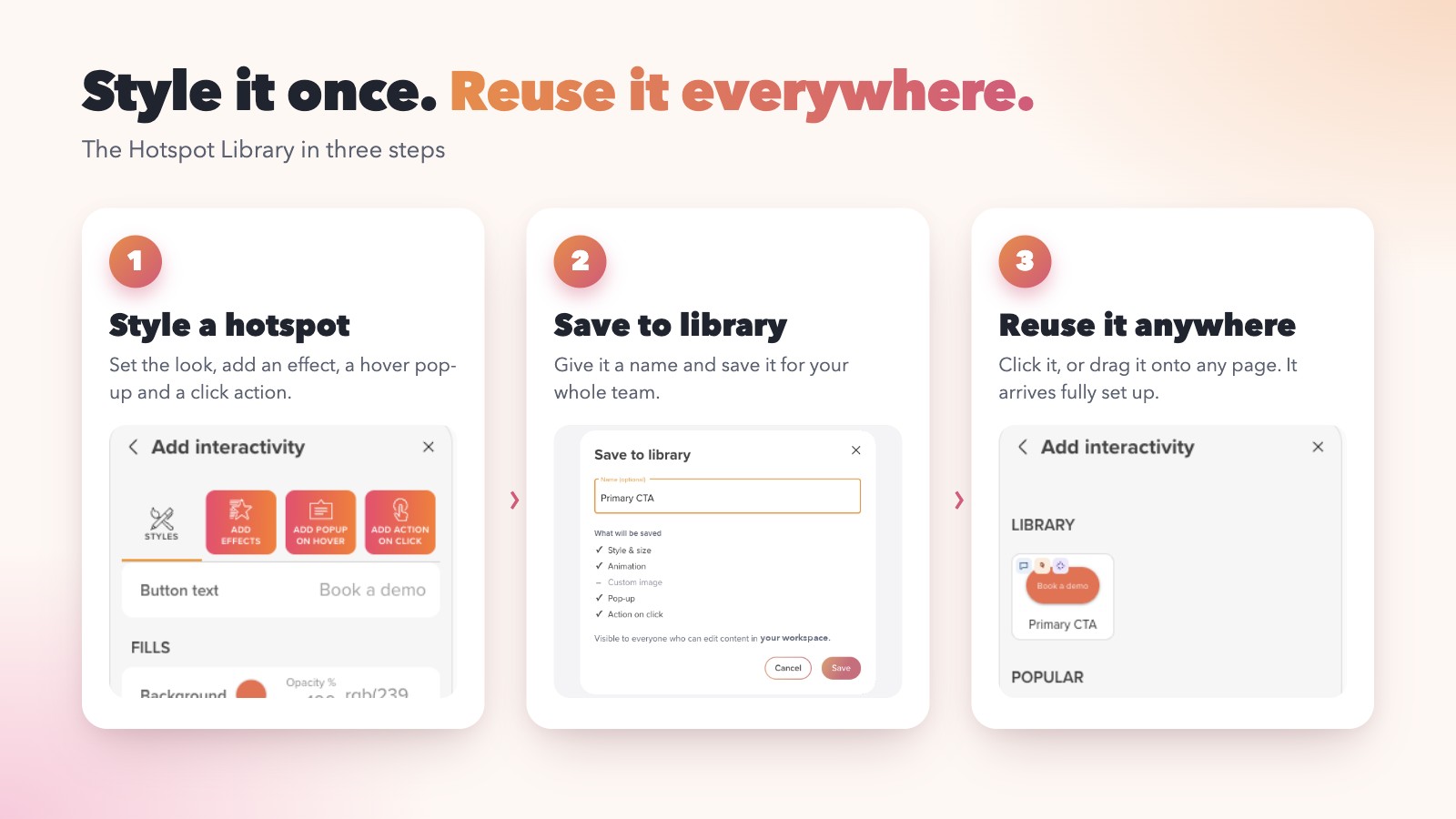
In short: save any hotspot as a reusable preset. Everyone who can edit content in your workspace sees it in a new Library at the top of the hotspot picker. Click it or drag it onto a page, and it arrives fully set up: look, animation, pop-up and click action. One set of branded hotspots, used consistently across your workspace.
Why it matters
For a corporate team, consistency is not a nice-to-have. Buttons, calls to action and pop-ups appear on every presentation, brochure and microsite, and they all represent your brand. The Hotspot Library gives you one trusted place to keep the approved versions, and one click to use them.
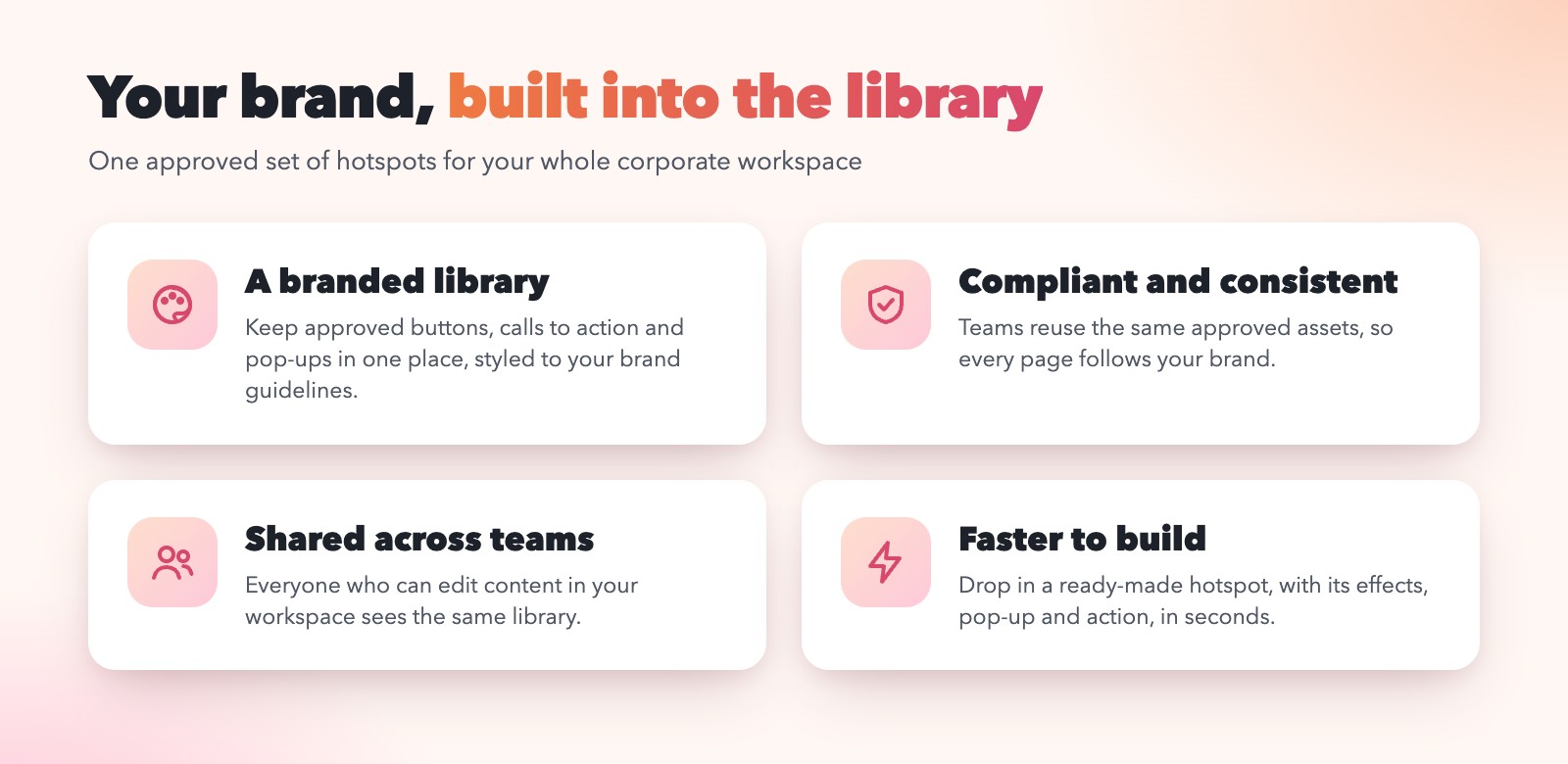
- Build a branded library for your workspace. Keep your approved calls to action, buttons, icons and pop-ups in one place, styled exactly to your brand guidelines.
- Reuse compliant, on-brand assets. Your team picks from the library instead of improvising, so every page uses the same approved colours, shapes, wording and links.
- Build pages faster. Drop in a ready-made hotspot instead of recreating its look, animation and link every time.
- Work as one team. The library is shared with everyone who can edit content in your workspace, so there is no more “copy the button from that other document”.
- Make interactivity easier to adopt. New editors can start from hotspots your team already trusts, with hover effects, pop-ups and click actions built in.
Build your corporate brand library
The Hotspot Library works best when it is curated. A simple way to roll it out across your organisation:
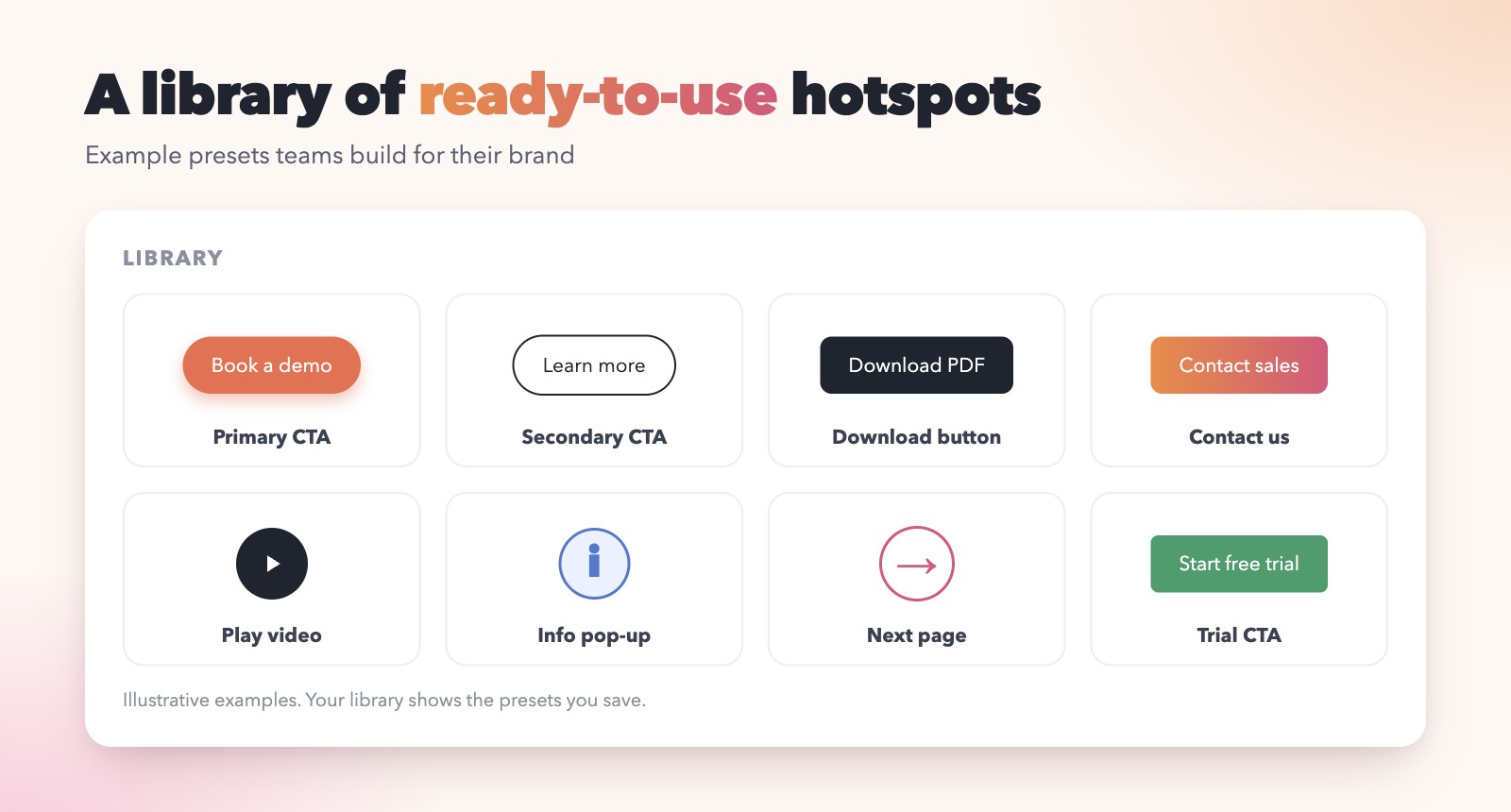
- Create the approved set. Your brand or marketing team styles the hotspots the company should use, such as primary and secondary calls to action, a download button, a contact button and a video play button.
- Save them with clear names. Use names that describe the purpose, for example “Primary CTA” or “Download brochure”, so everyone knows which one to pick.
- Let every team reuse them. Editors open the Library in Studio and place the approved hotspot, instead of designing their own.
- Keep it current. When a campaign or guideline changes, update the preset or add a new version, and retire the old one.
Tip: agree in advance who looks after the library. Everyone who can edit content in the workspace can see and use it, so a short naming convention and a named owner keep it tidy as it grows.
What a preset remembers
A preset is a saved hotspot. When you save one, everything you set up on it is stored together, so you do not have to configure it again.
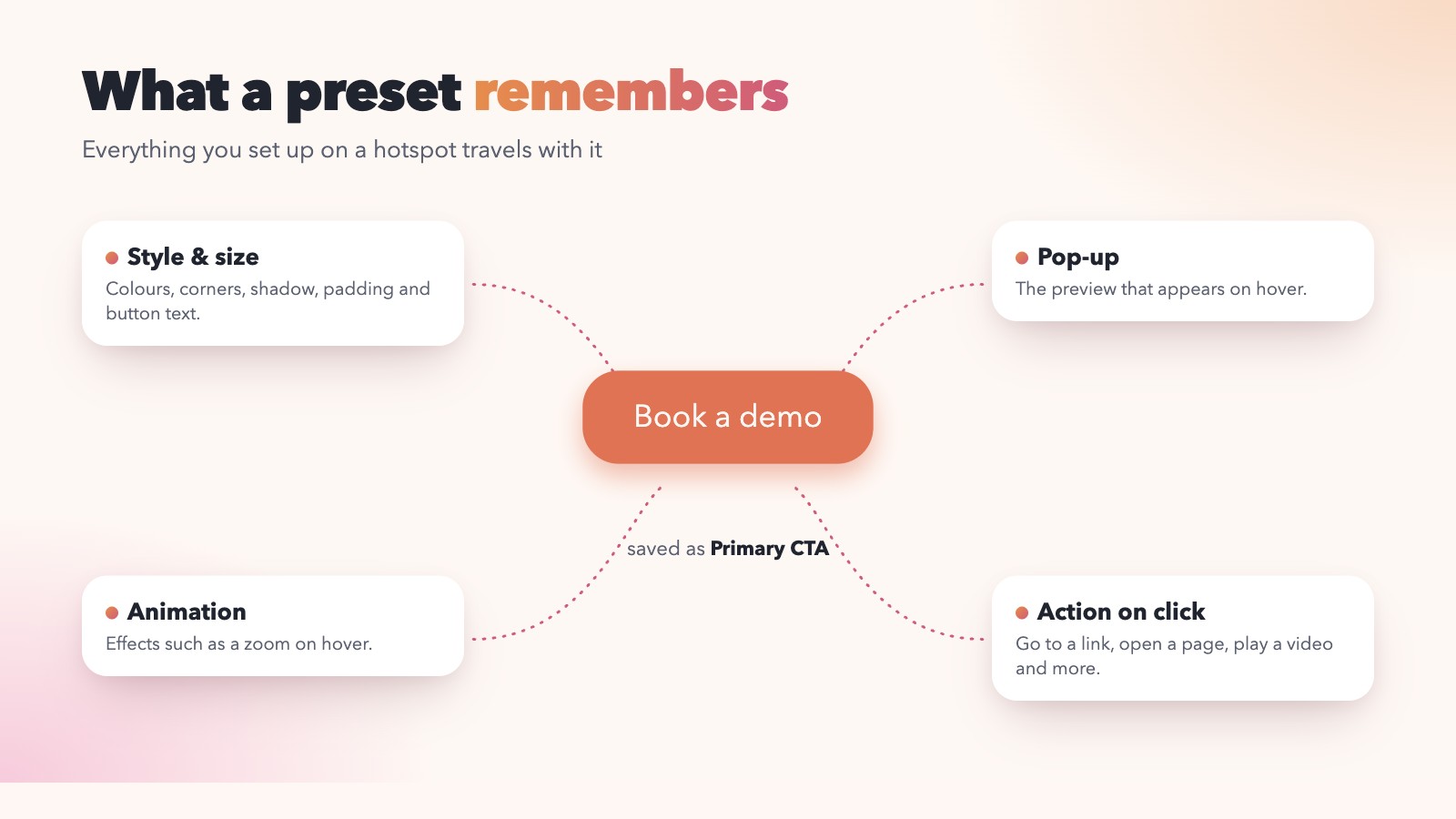
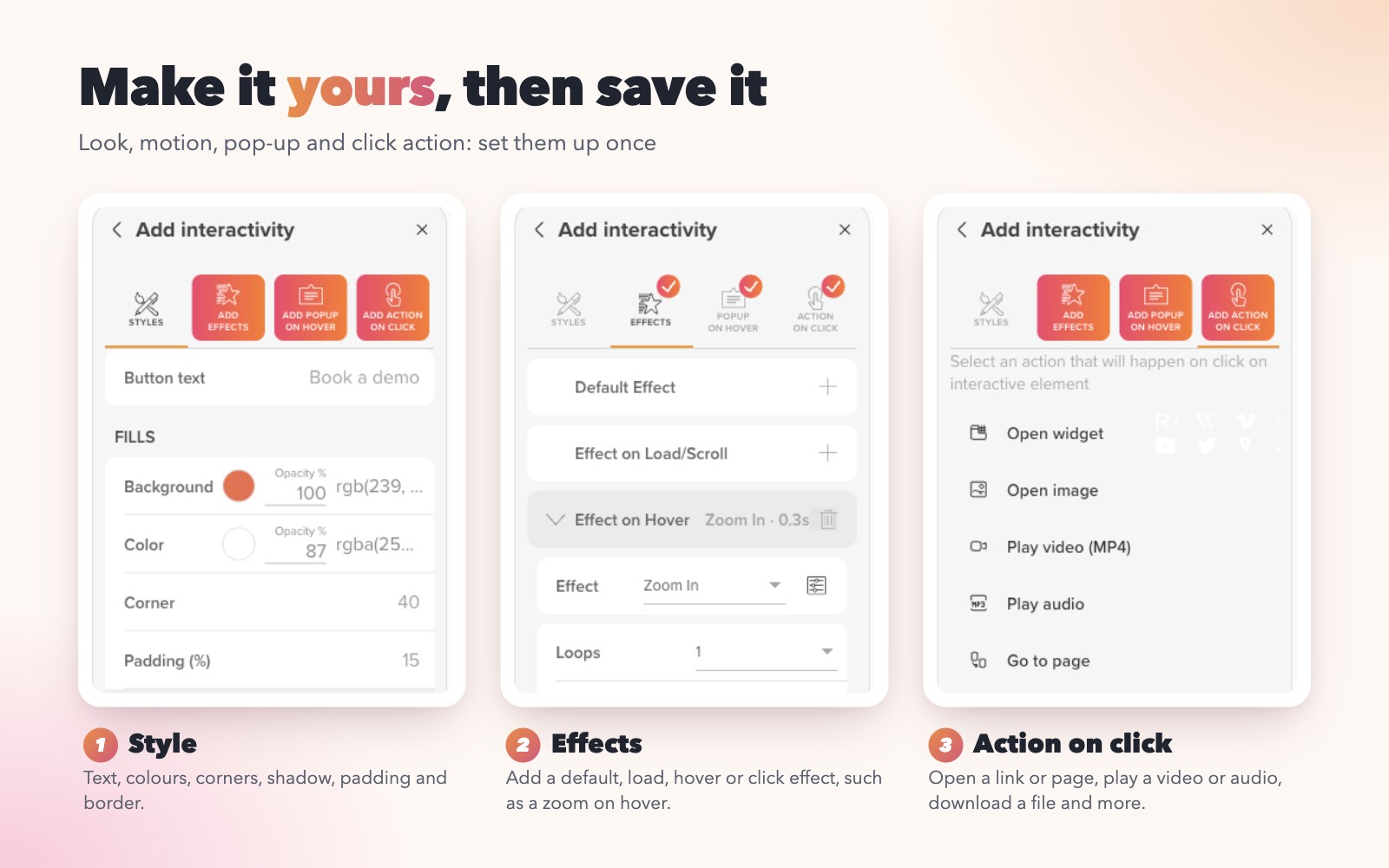
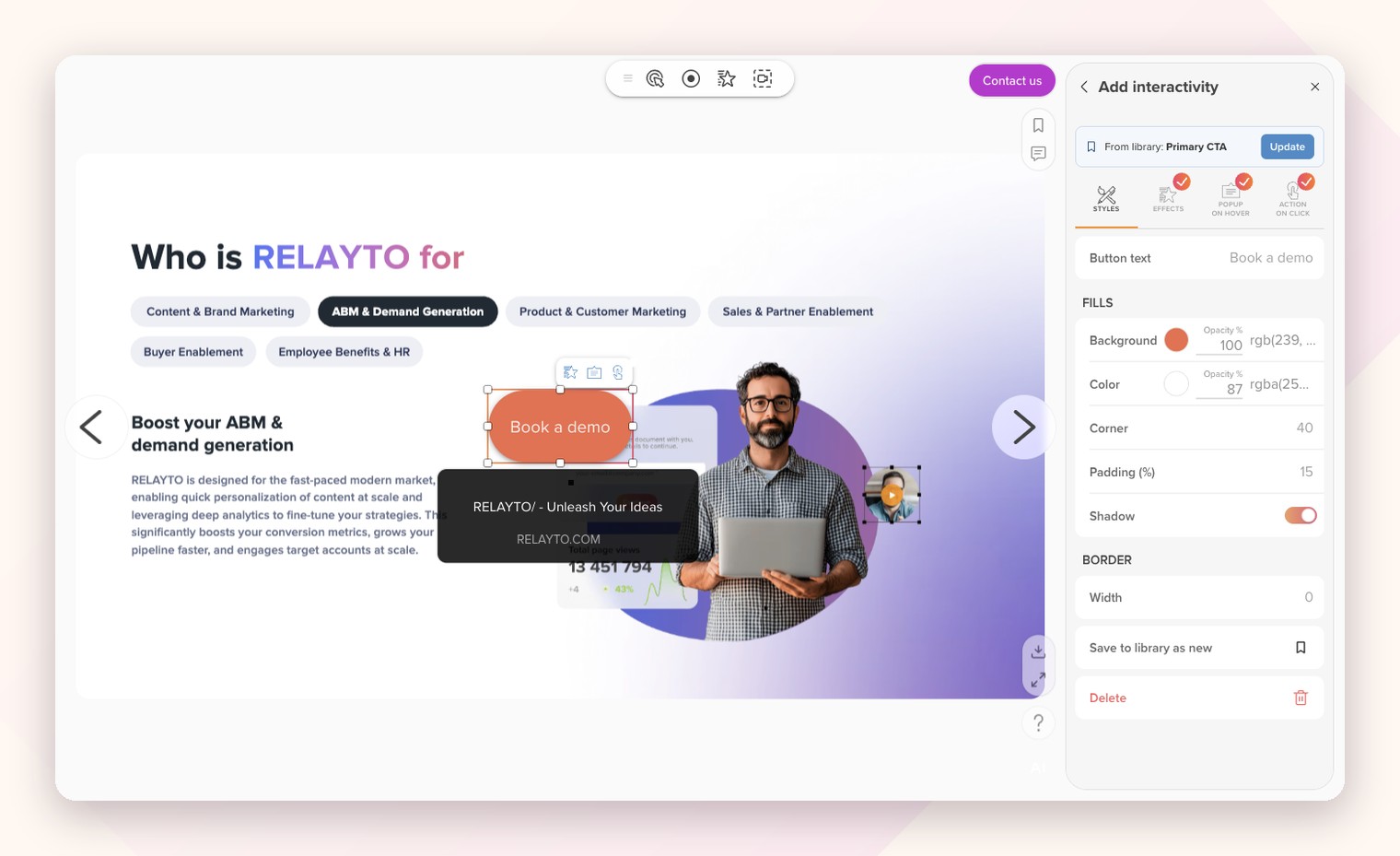
- Style and size: button text, colours, corners, shadow, padding and border.
- Animation: effects such as a gentle zoom on hover.
- Pop-up: the preview that appears when a visitor hovers over the hotspot.
- Action on click: go to a link or page, play a video or audio file, download a file and more.
- Custom image: if your hotspot uses one, it is saved too.
How it works
It takes three steps, and the first two you only do once.
Where to find it
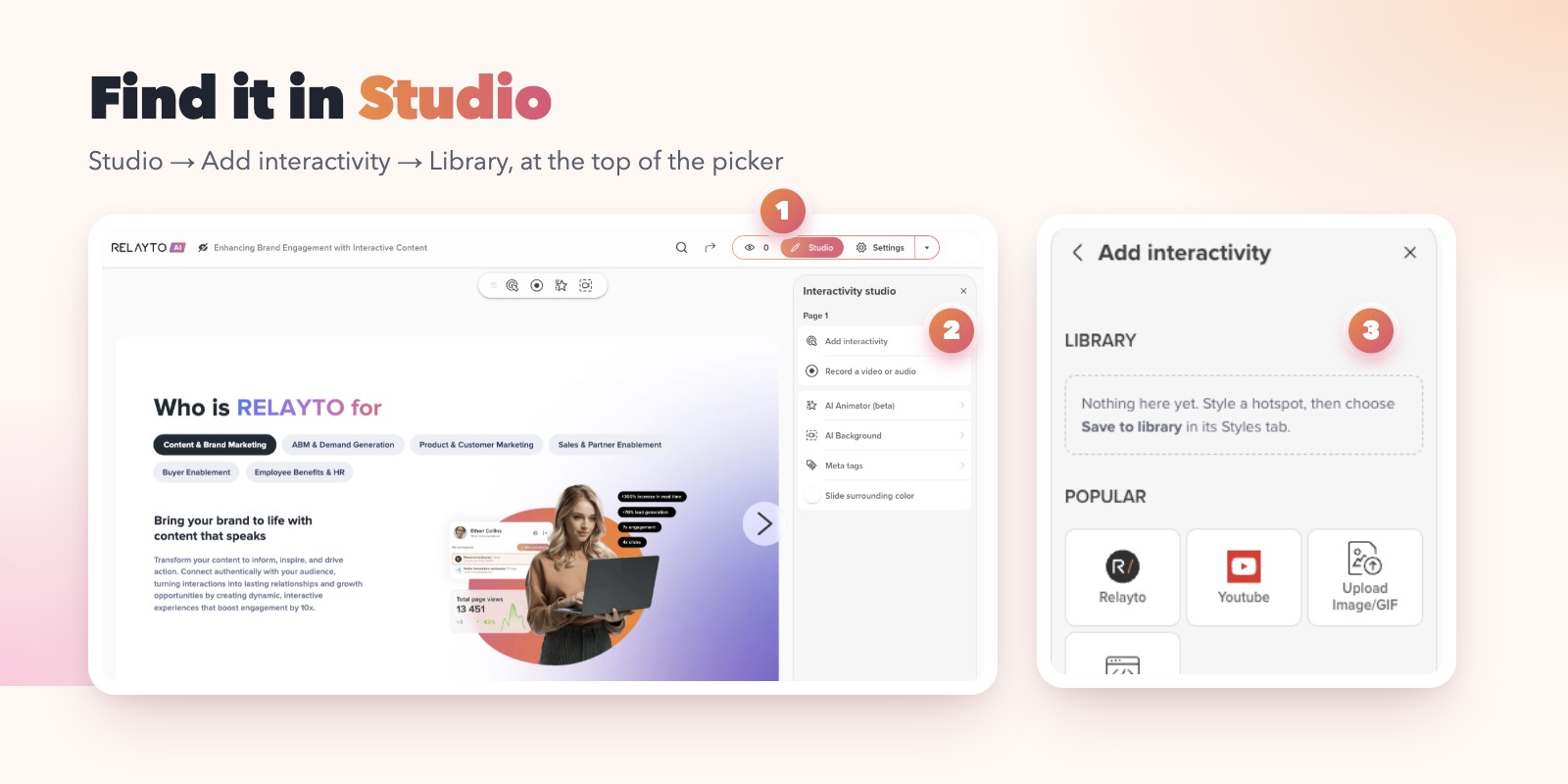
Open any content in Studio, choose Add interactivity, and look for the new Library section at the top of the picker. It is empty until you save your first preset, and it tells you how to get started.
1. Style a hotspot
Add a hotspot as you normally would, for example a button, and make it yours. Set the text, colours, corners and shadow. Then add an effect, a pop-up on hover, and an action on click. Small ticks on the tabs show what you have already set up.
2. Save it to the library
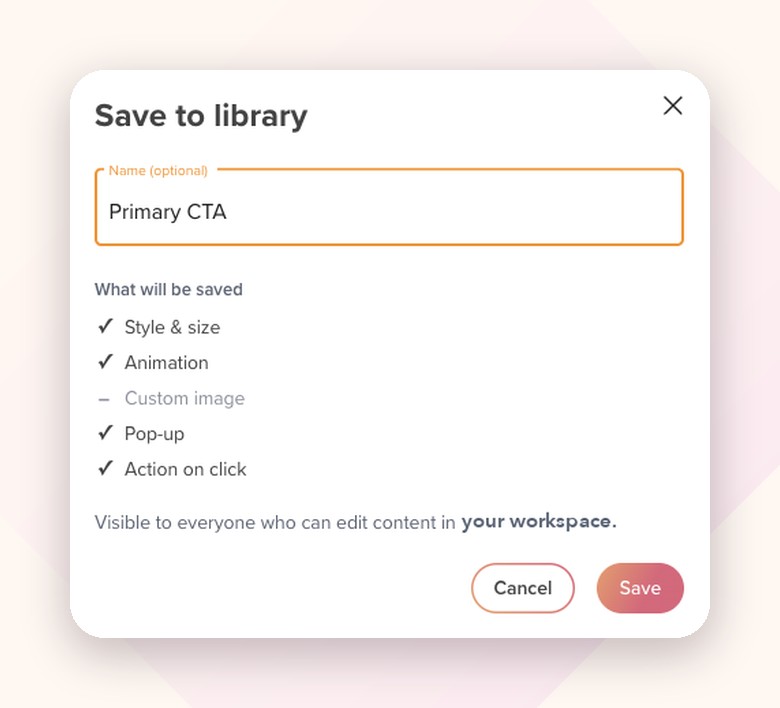
In the hotspot’s Styles tab, choose Save to library. Give it a name (optional, but names make a library easier to scan). The dialog shows exactly what will be saved, and reminds you that the preset is visible to everyone who can edit content in your workspace.
That is it. The preset now appears in the Library, with small badges that show whether it includes a pop-up, an action or an animation.
3. Reuse it anywhere
On any other page, open Add interactivity and click your preset in the Library, or drag it straight onto the page. It arrives with everything attached, and it is still a normal hotspot that you can move, resize and adjust to fit the page.
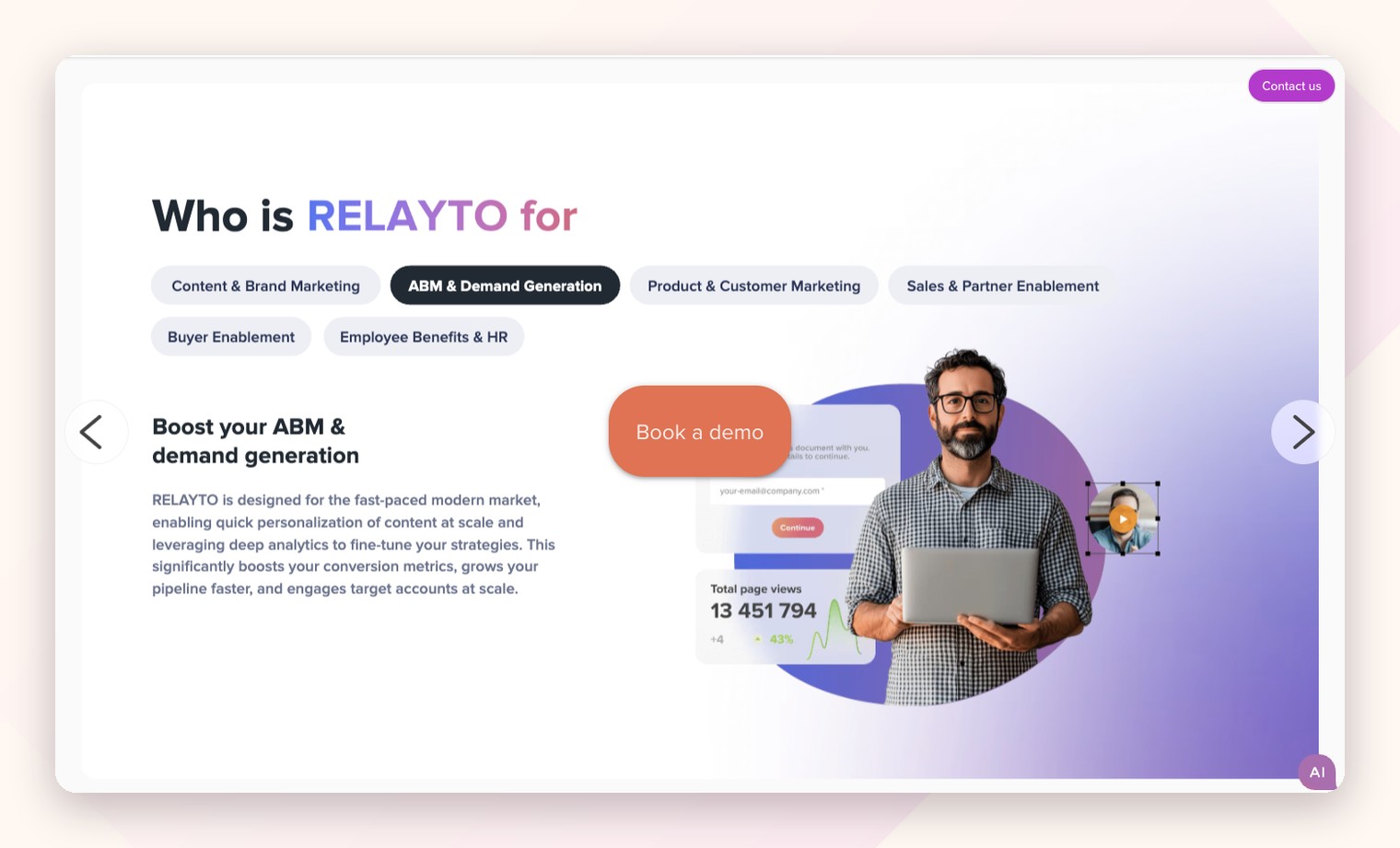
Here is the result for your readers: the same branded button, with its hover effect and click action, on the page.
Keep your library tidy
A hotspot placed from the library shows where it came from, with an Update button when you want to save changes back to the preset. You can also Save to library as new to create a variation. Every library item has a menu to Rename or Delete it.
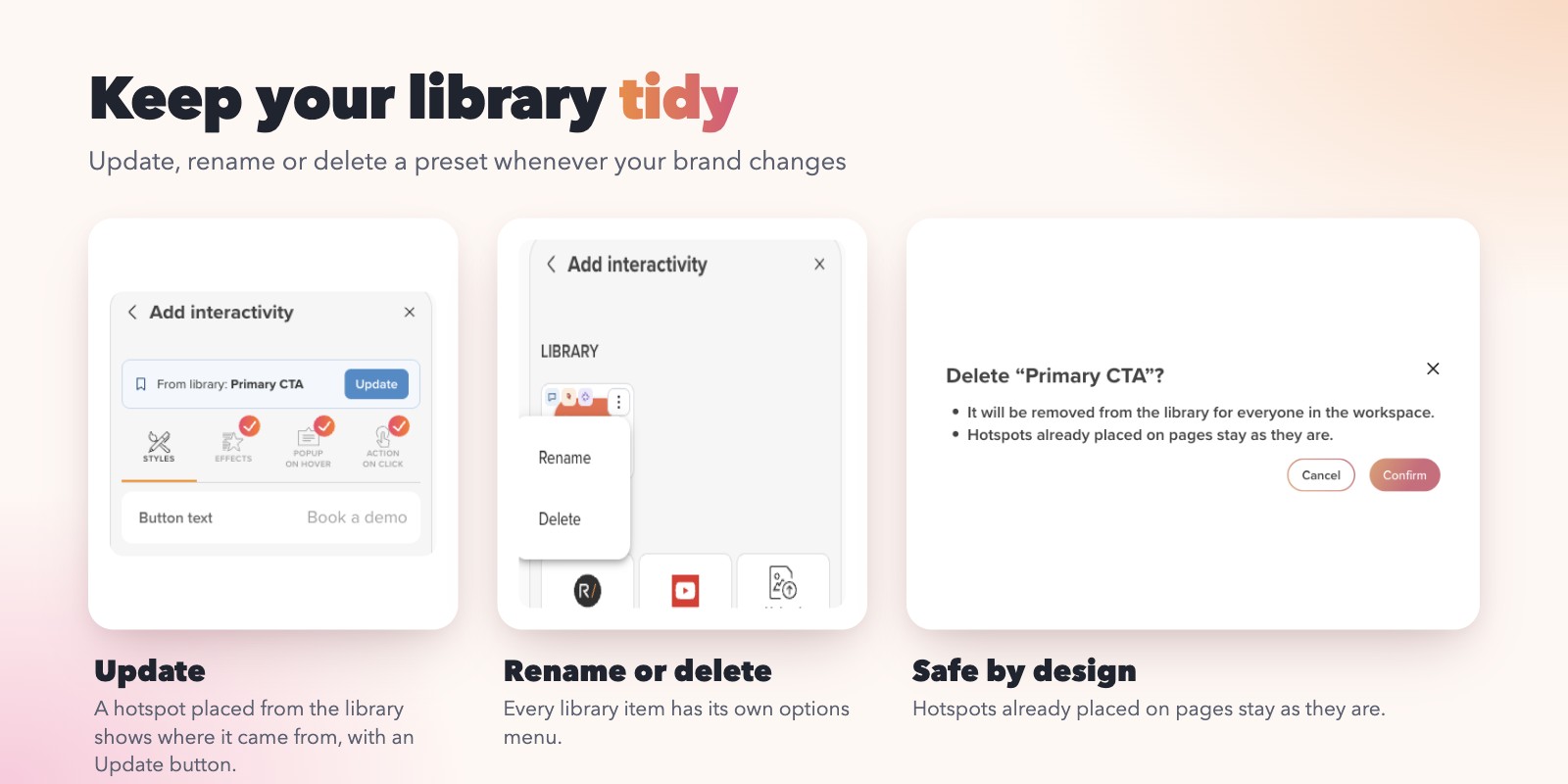
Deleting a preset removes it from the library for everyone in the workspace. Hotspots that were already placed on pages stay exactly as they are.
Ideas to get started
Most teams begin with the hotspots they reuse the most. A few that work well as presets:
- A primary and a secondary call to action, for example “Book a demo” and “Learn more”.
- A download button for your latest brochure or one-pager.
- A “Contact us” button that uses the Contact action.
- A play button for video walkthroughs and a next page arrow for guided journeys.
- An info pop-up that explains a term the same way every time.
A small tip: name presets by purpose, not by colour. It keeps the library easy to scan as it grows.
Good to know
- The library is saved per workspace and is visible to everyone who can edit content in it.
- Naming a preset is optional.
- A hotspot placed from the library is a regular hotspot, so you can still edit it on the page.
- Deleting a preset never changes hotspots that are already on your pages.
Try it today
Open any content in Studio, style a hotspot in your brand’s look, and choose Save to library. Your whole team can use it from the next page onwards.
Questions, or an idea for what the library should do next? Get in touch, we would love to hear it.