

Integrating RELAYTO and Tableau combines dynamic visual analytics with interactive, narrative-driven content to deliver exceptional business value through enhanced user engagement, improved decision-making, and richer storytelling.
Enhanced Decision-Making:
Provides clear, interactive insights, enabling data-driven decisions.
Improved User Engagement:
Interactive dashboards and storytelling capture attention and facilitate deeper exploration.
Centralized Analytics:
Consolidates insights and narratives into a single user-friendly platform.
Real-Time Data Access:
Ensures analytics are current and actionable.
1 | Embedded interactive dashboards
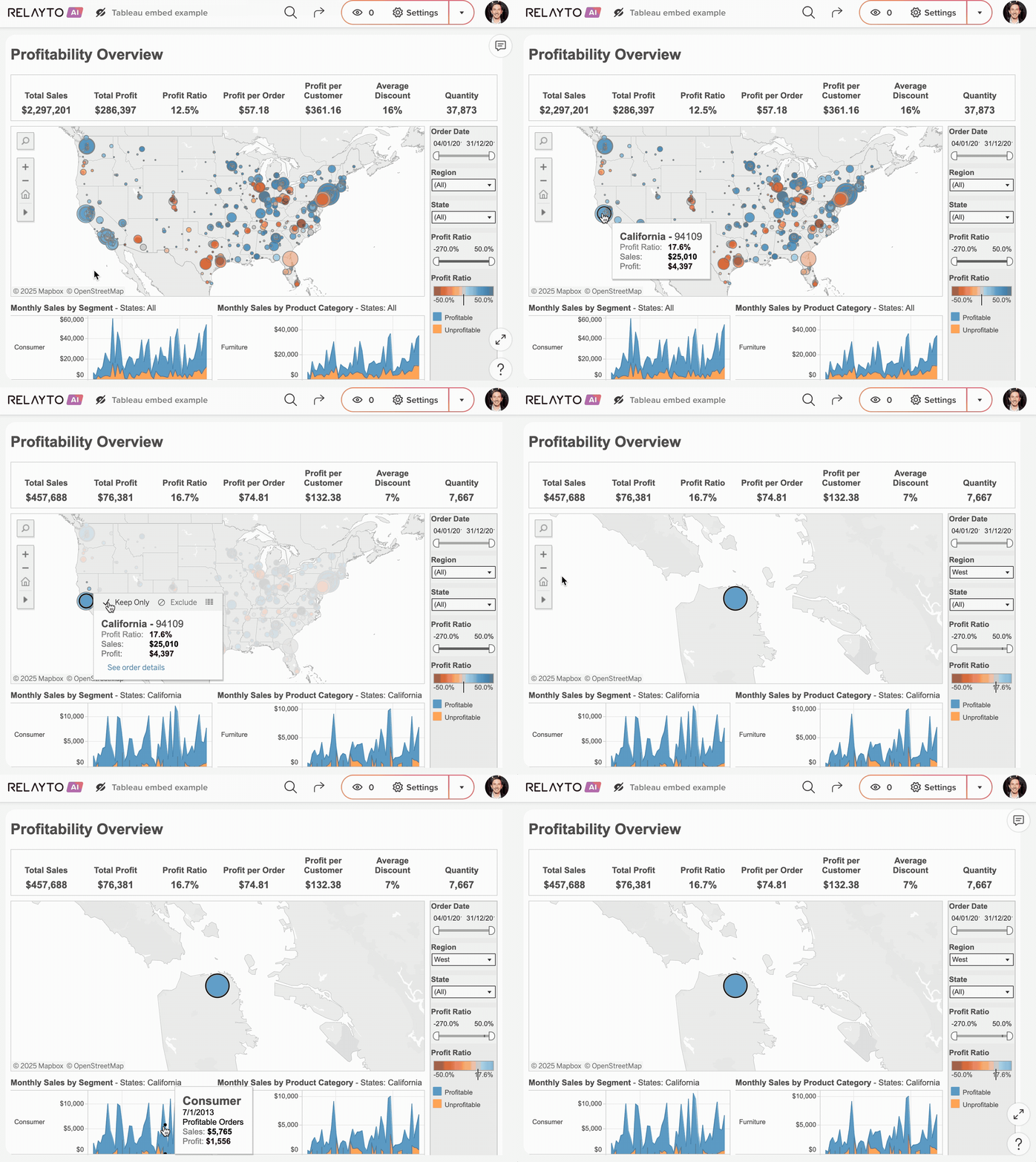
Embed interactive Tableau dashboards directly within RELAYTO documents, enabling seamless user exploration and interaction without leaving the RELAYTO environment.

How to Embed:
In Tableau:
1. Open your Tableau dashboard.
2. Click "Share" and select the "Embed Code" option.
3. Copy the provided embed code.
In RELAYTO:
1. Create a new RELAYTO widget.
2. Paste the Tableau embed code
3. Save and publish to activate.


2 | Data-Driven Storytelling
Integrate Tableau visuals with RELAYTO's interactive narratives, providing context and enhancing comprehension through structured storytelling.
How to Embed:
In Tableau:
1. Identify key visualizations supporting your narrative.
2. Generate embed code (iframe) from Tableau using the dashboard sharing options.
In RELAYTO:
1. Create or select the page for your narrative in RELAYTO.
2. Insert the embed code in the appropriate location within your narrative.
3. Publish your document to ensure visuals appear interactively within context.


3 | Visualize RELAYTO data in Tableau
RELAYTO provides an option to export analytics data in CSV format for detailed visualization and analysis within Tableau.

Export RELAYTO data:
1. Navigate to RELAYTO Content Analytics.
2. Select the desired metrics and date range.
3. Click on "Export CSV" to download the file.
Import into Tableau:
1. Open Tableau and select "Connect to Data."
2. Choose "Text File" and upload the CSV file.
3. Visualize data by creating dashboards, charts, and reports.
4 | RELAYTO connector for Tableau
Enterprise clients can request a custom Tableau connector that feeds RELAYTO analytics data directly into Tableau in real time, enabling immediate analysis and dynamic reporting.
This connector is available as an extra paid add-on.
How to Request:
1. Contact RELAYTO your dedicated enterprise account manager.
2. Specify the analytics data points required and your Tableau version.
3. RELAYTO will provide a custom connector with installation instructions and configuration support.