

Adding AI Narration in RELAYTO allows you to embed professional-sounding voiceovers, enhancing viewer engagement and making complex content easier to digest. Let's learn how to set up your AI Narration.
Finding AI Narration
Step 1
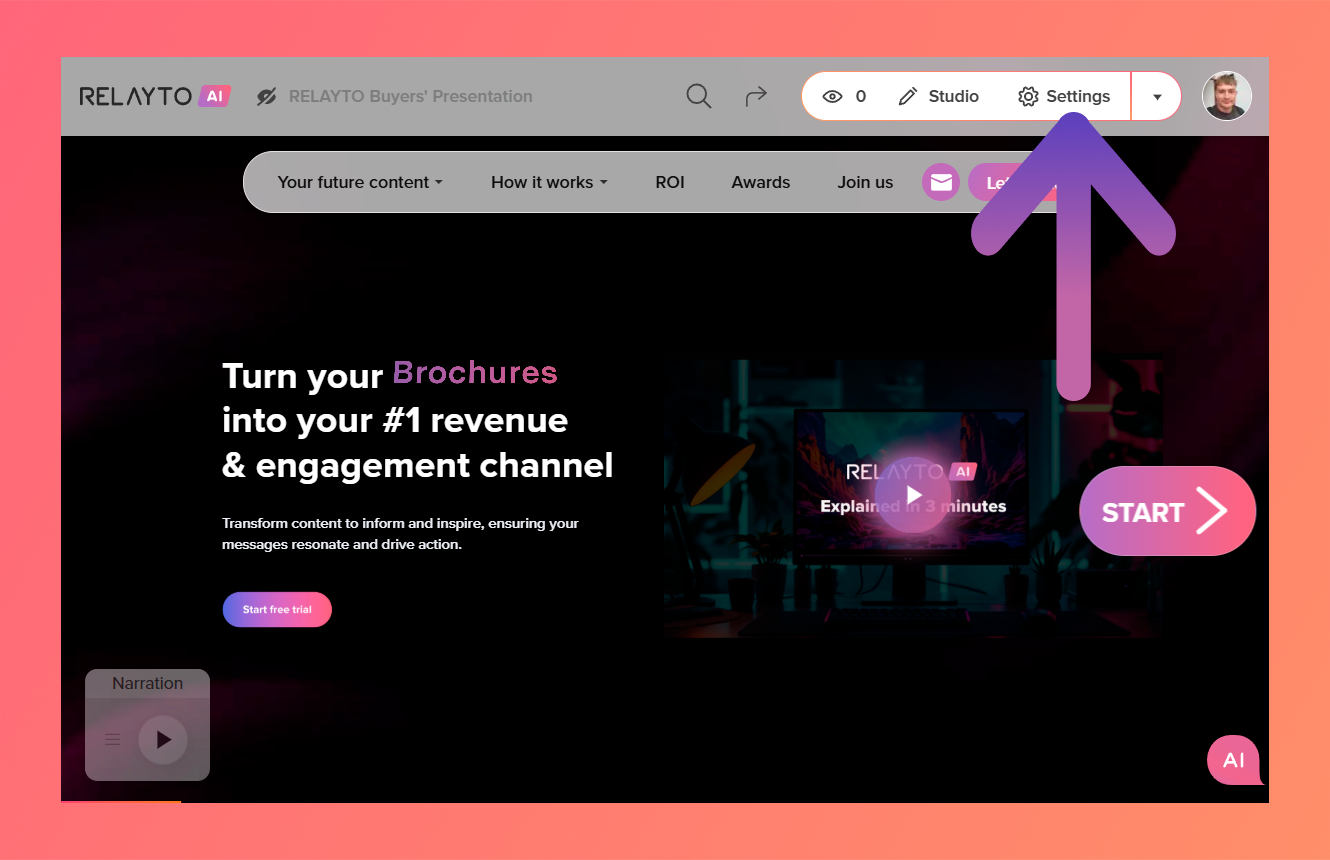
Click the "Settings" button in the top right corner.
Step 2
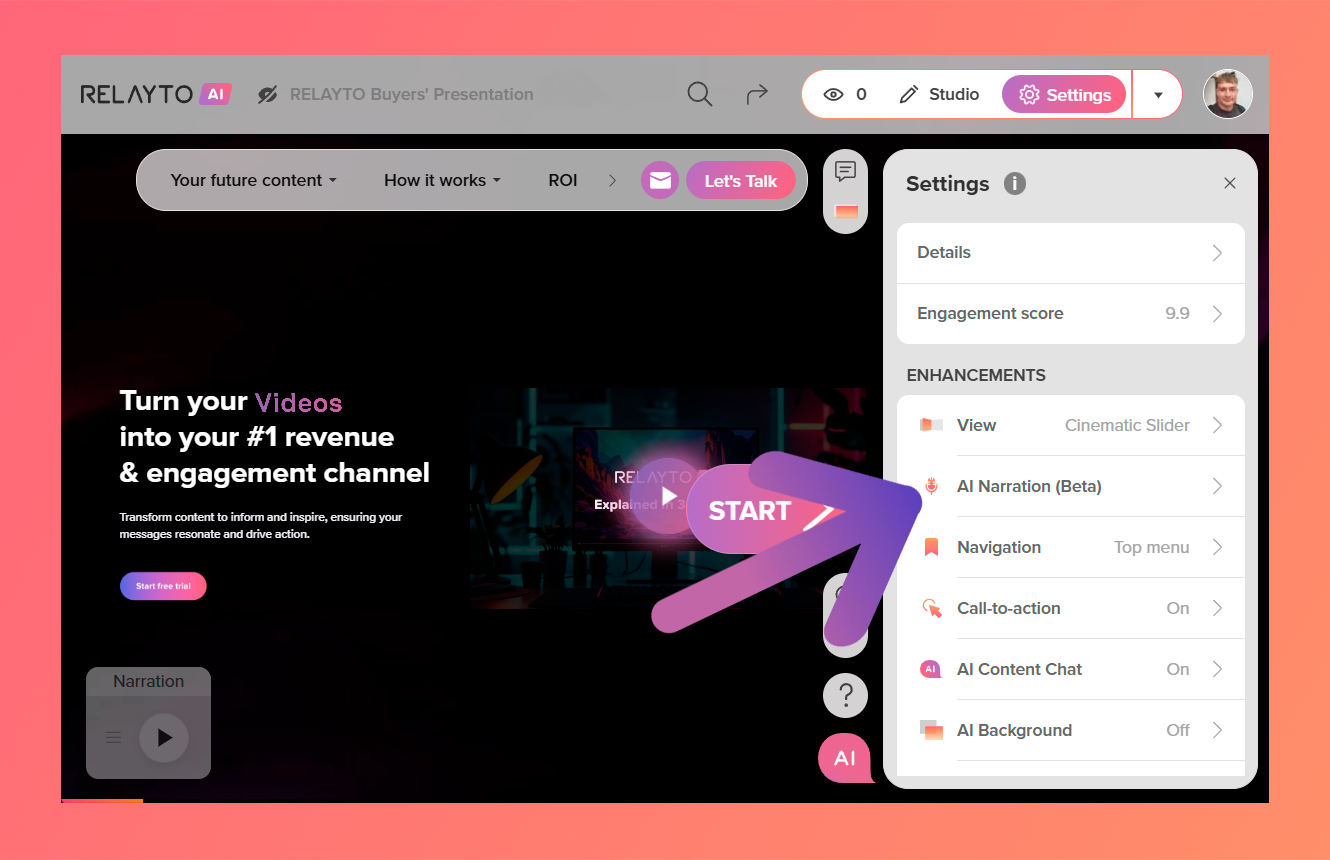
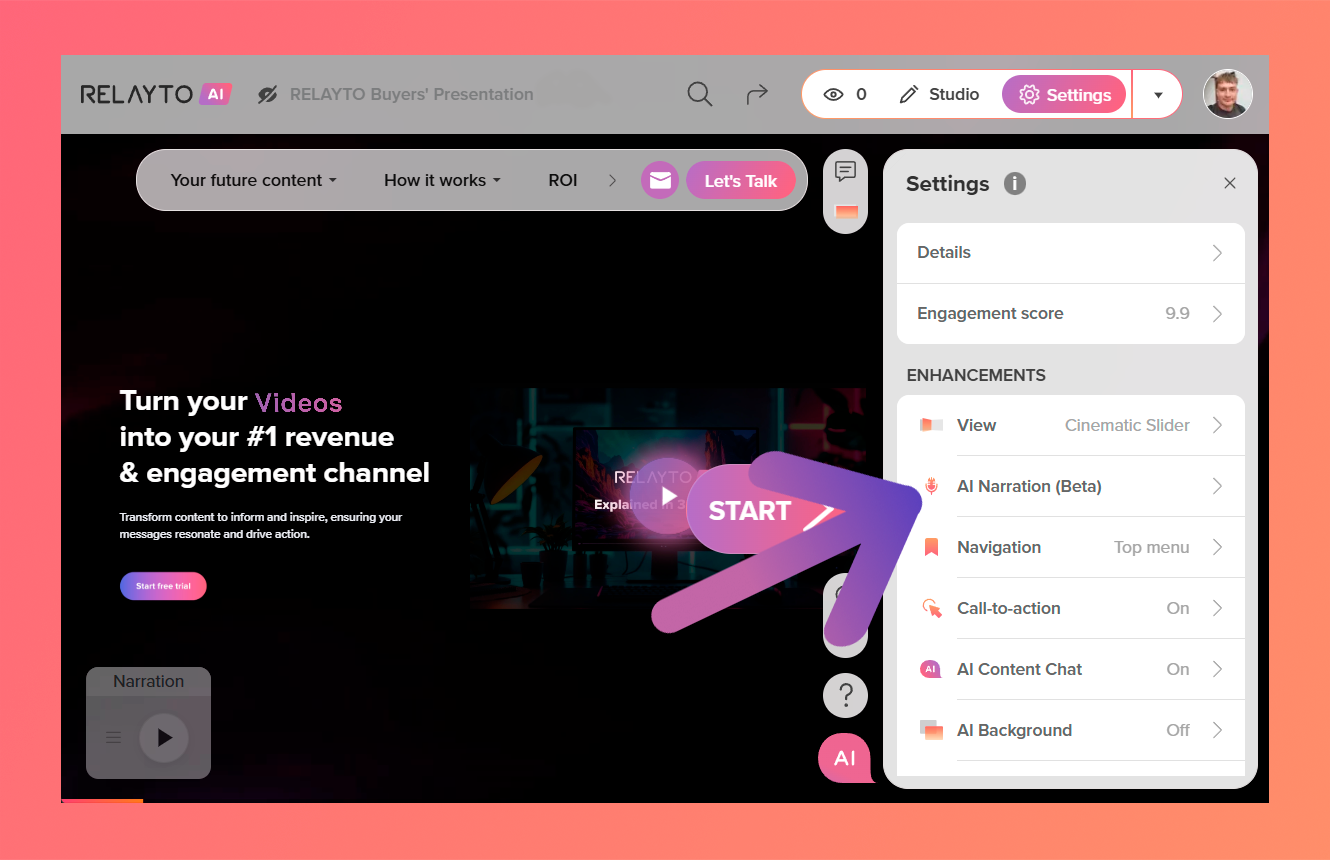
Click "AI Narration" on the right-side menu.
Add Narration Text
Step 1
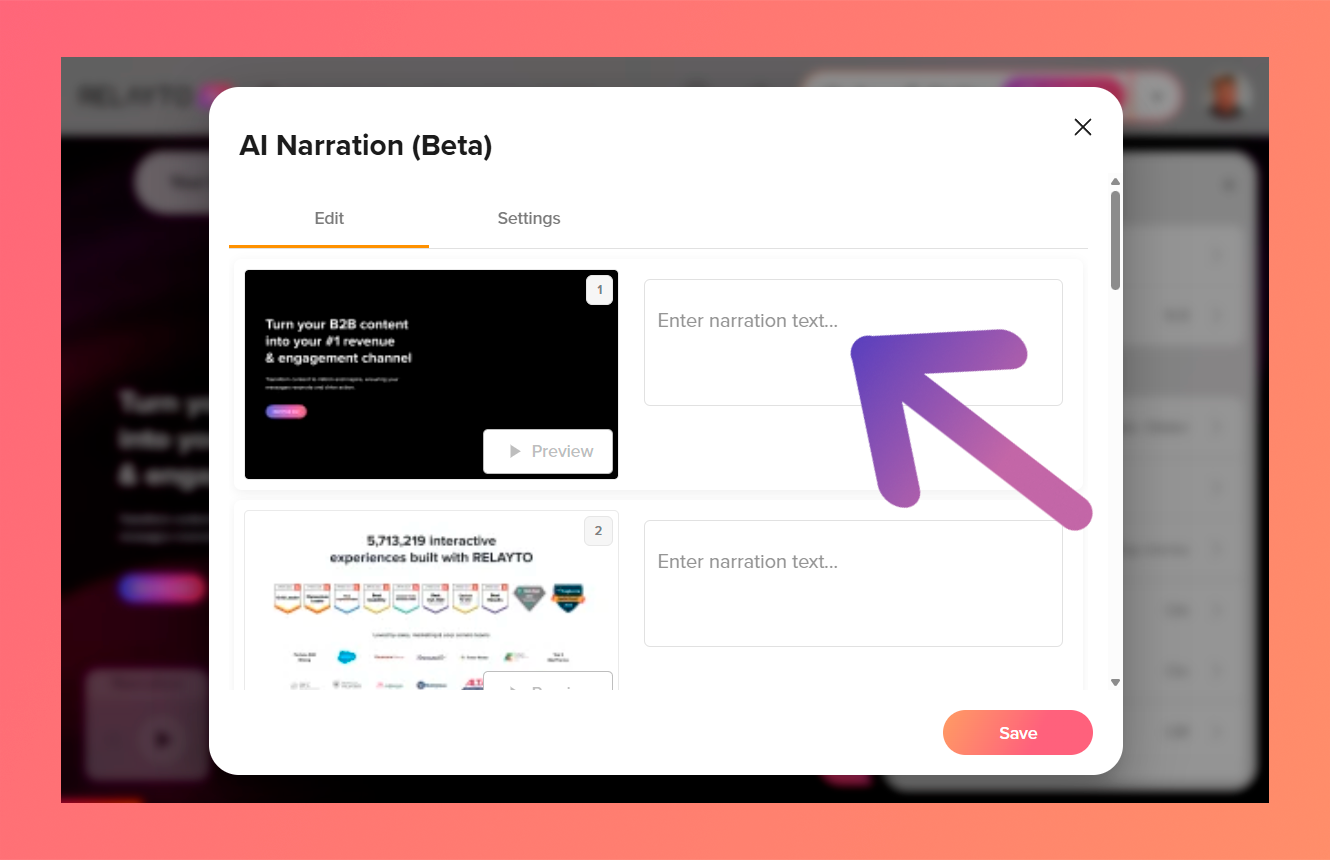
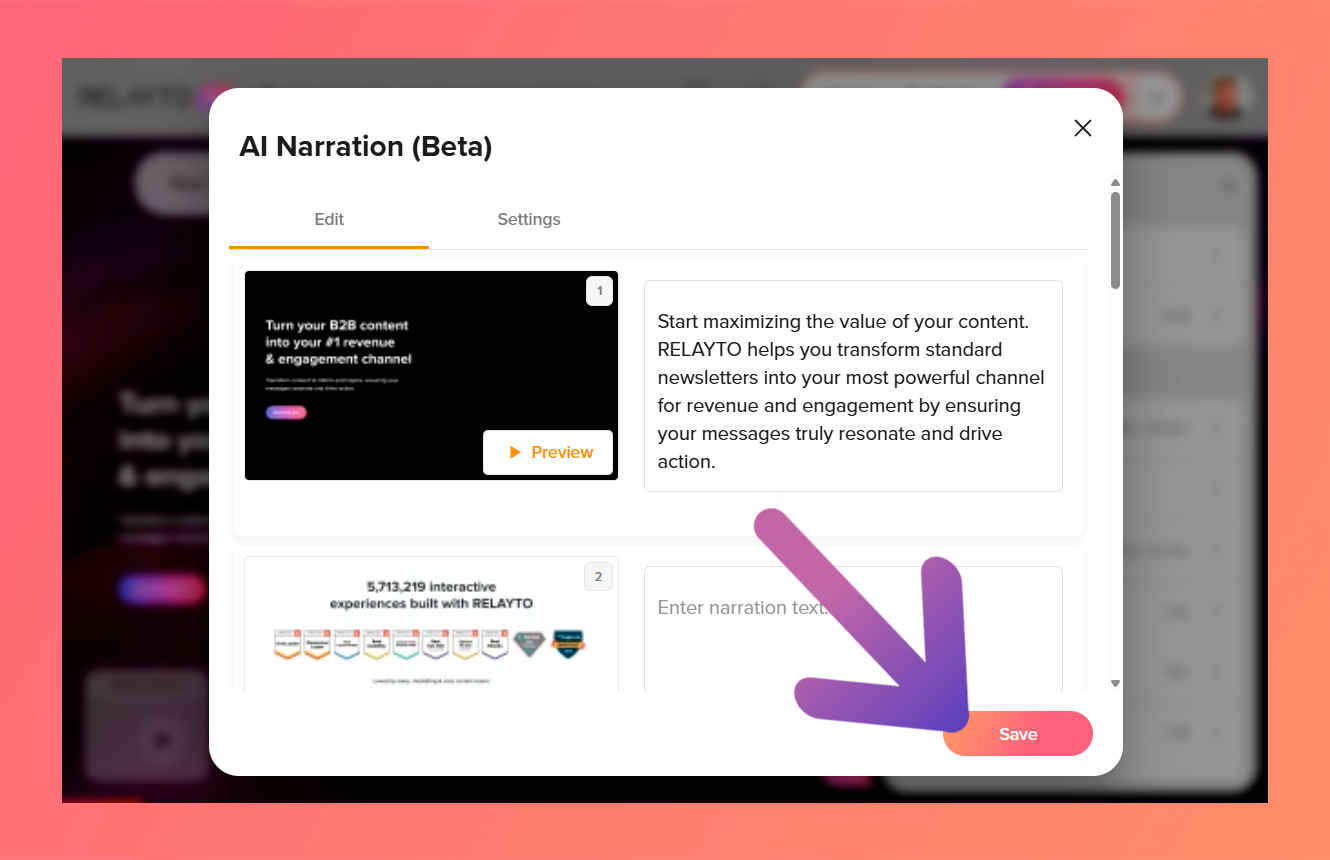
Add your desired narration text for each slide where you need audio.
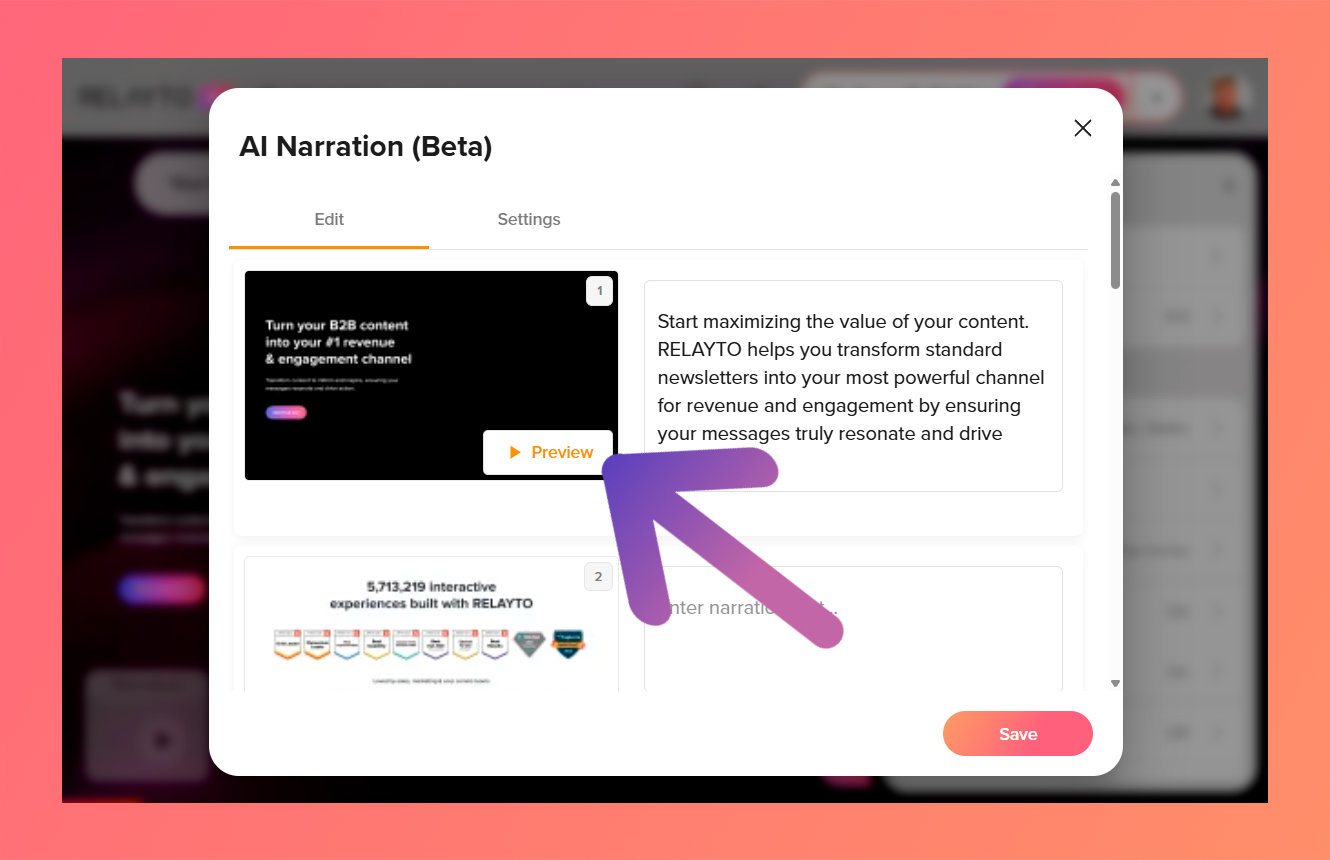
For your understanding, you can click on the button "preview" to listen to how the generated audio will sound.
Step 2
Click the "Save" button in the bottom right corner.
Settings of Narration
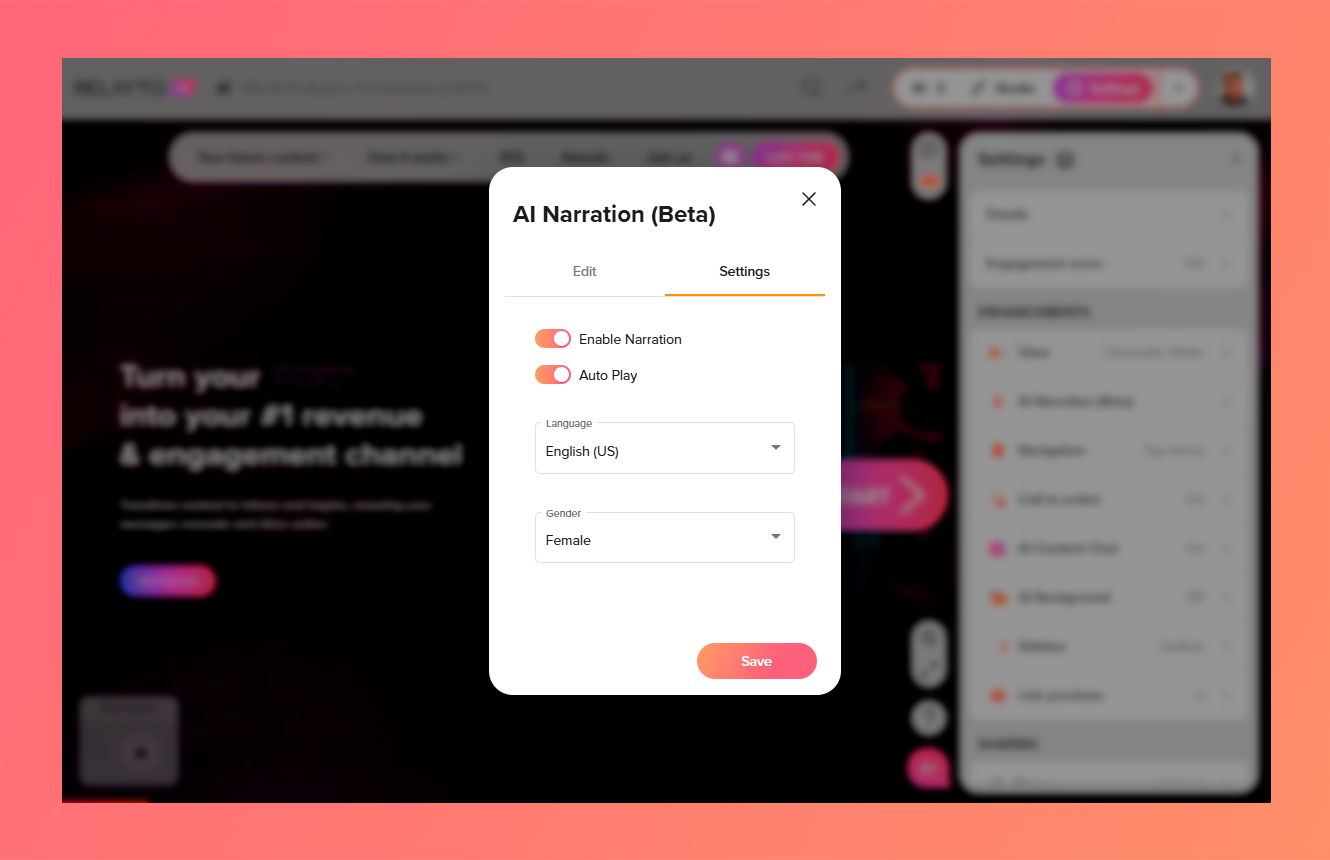
If you want to switch narration voice (between female or male), enable or disable autoplay, enable or disable the narration feature, or edit the narration text.
Step 1
Click the "Settings" button in the top right corner.
Step 2
Click "AI Narration" on the right-side menu.
Step 3
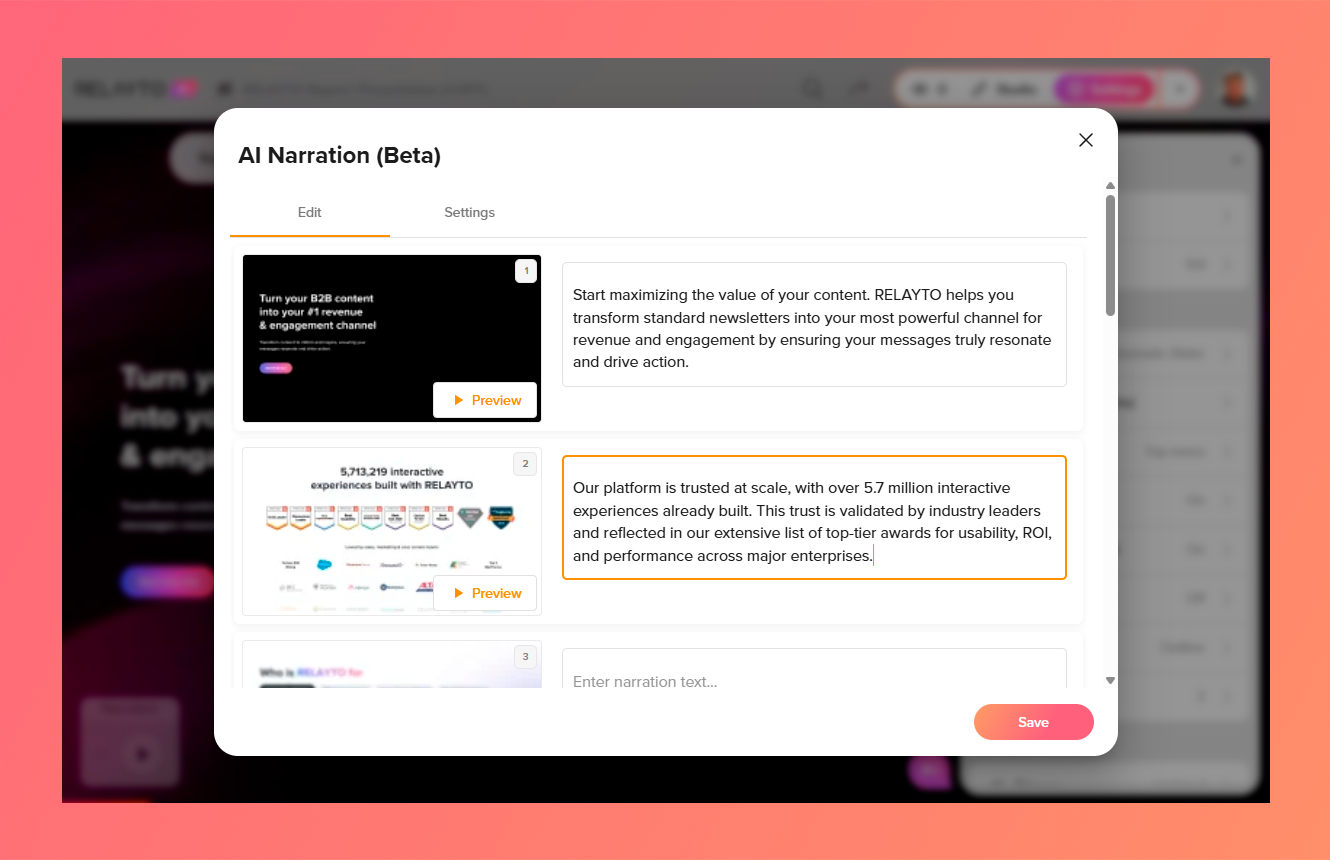
Edit or delete your text if you need to refine the script for each slide.
Step 4
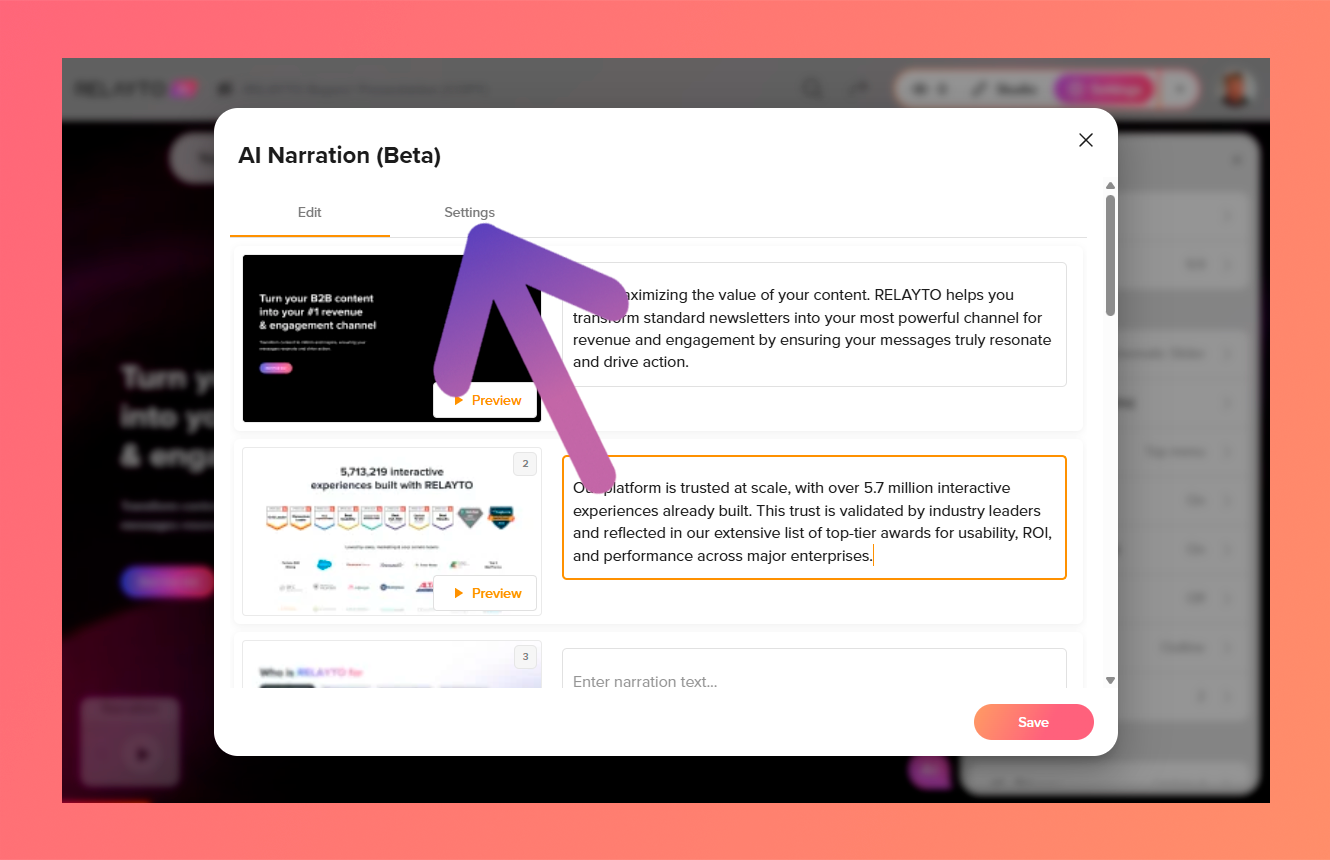
Click the "Settings" button in the top left corner of the AI Narration panel to edit the narration voice, adjust autoplay settings, or completely disable narration for the experience.
Step 5
Review all your adjustments
Step 6
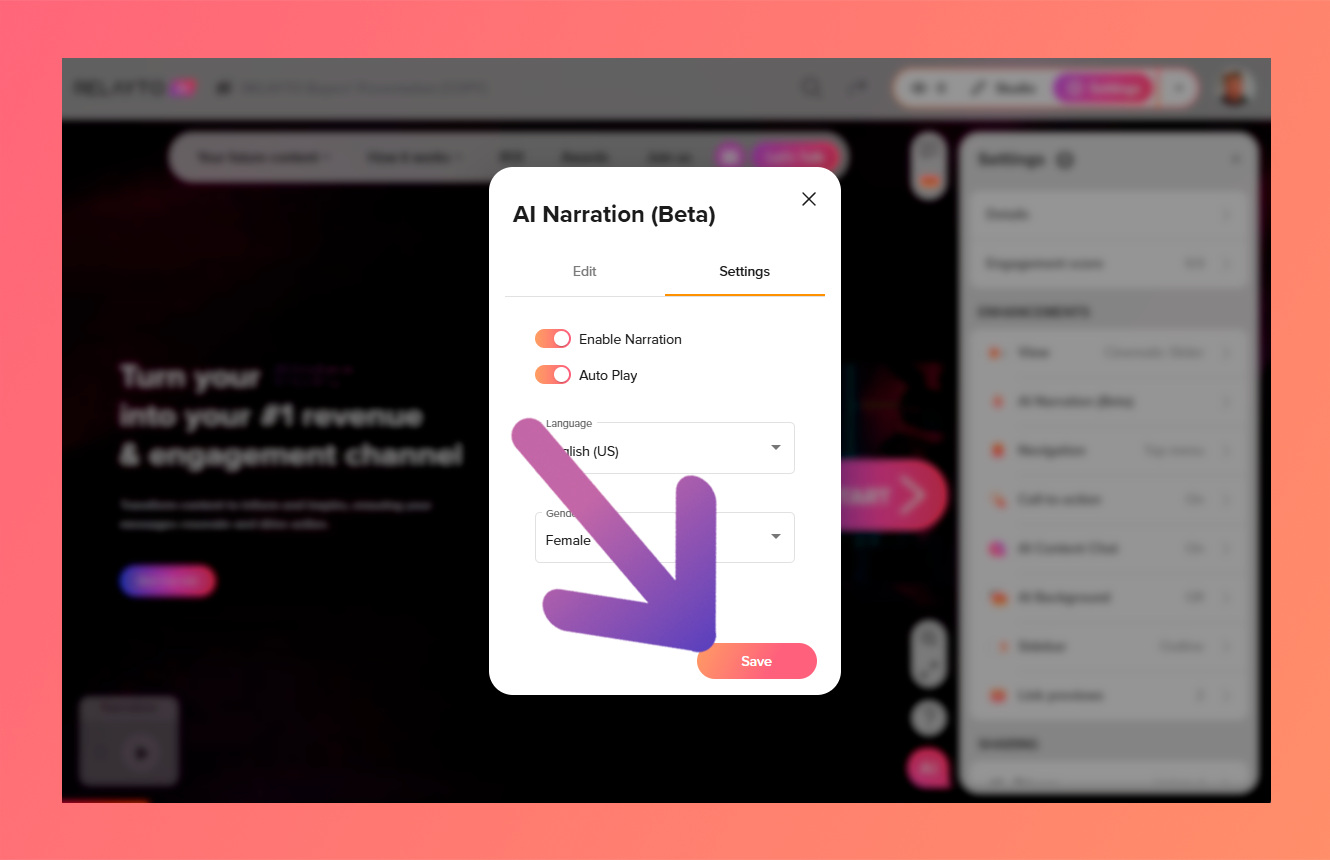
Click "Save" to finalize your ideal narration settings.
How Narration Works in the Viewer's Eyes
The visitor has a narration menu in the bottom left corner of their screen.
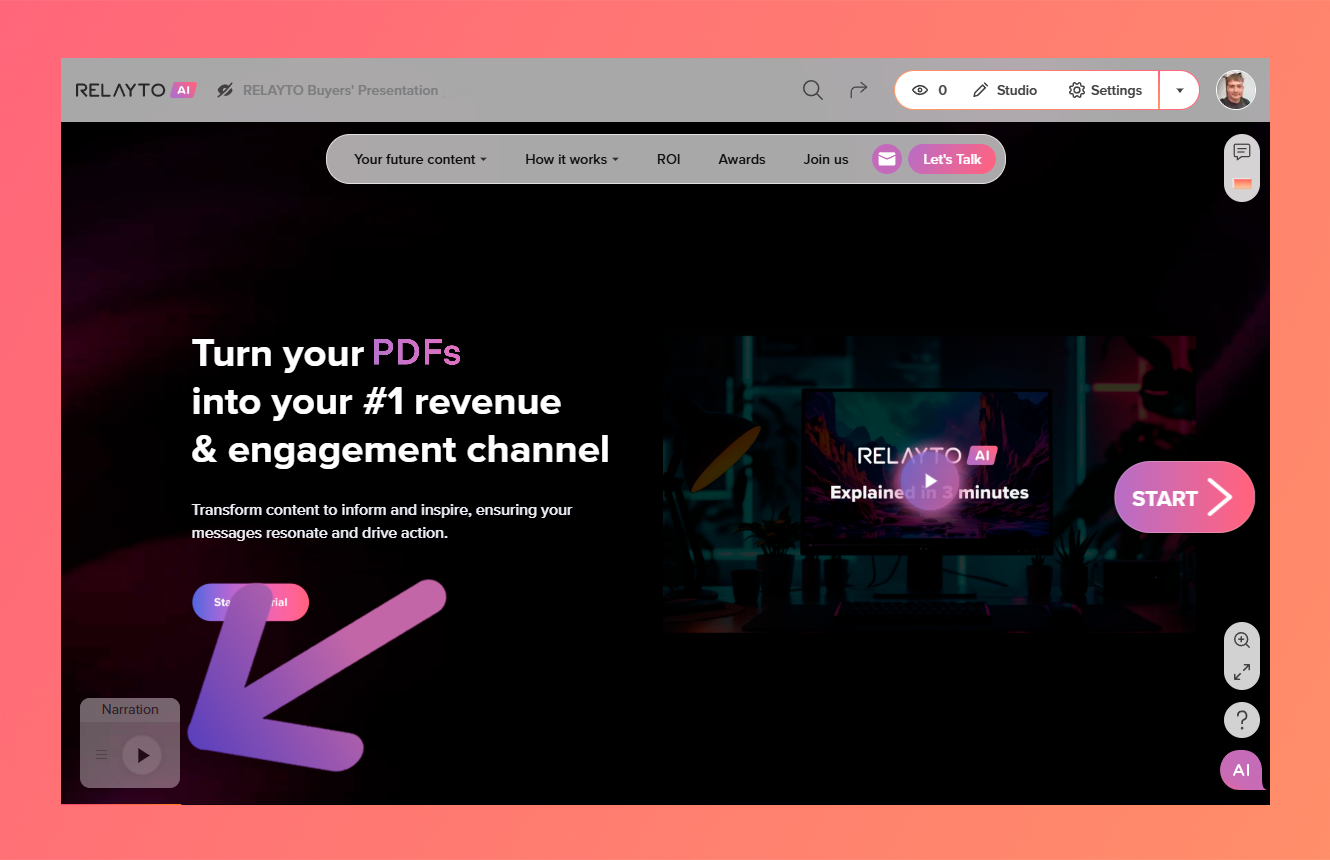
- They can easily enable or disable the narration and change the audio volume directly from this menu for a personalized listening experience, even if it is set to autoplay.
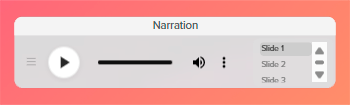
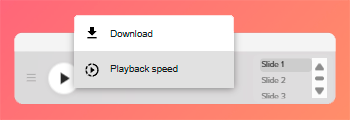
- They also have a separate narration menu where they can download the audio file, change the playback speed of the narration, or select a specific slide to jump to.
💡 Tips: Use AI Narration for product demos, benefits presentations or pitch deck introductions to ensure your audience receives your message exactly as intended.
Related Articles:
📤 How to upload your content to RELAYTO
Thank you for joining us in this tutorial! If you have any questions or need help, feel free to email us at support@relayto.com or book a call here.