

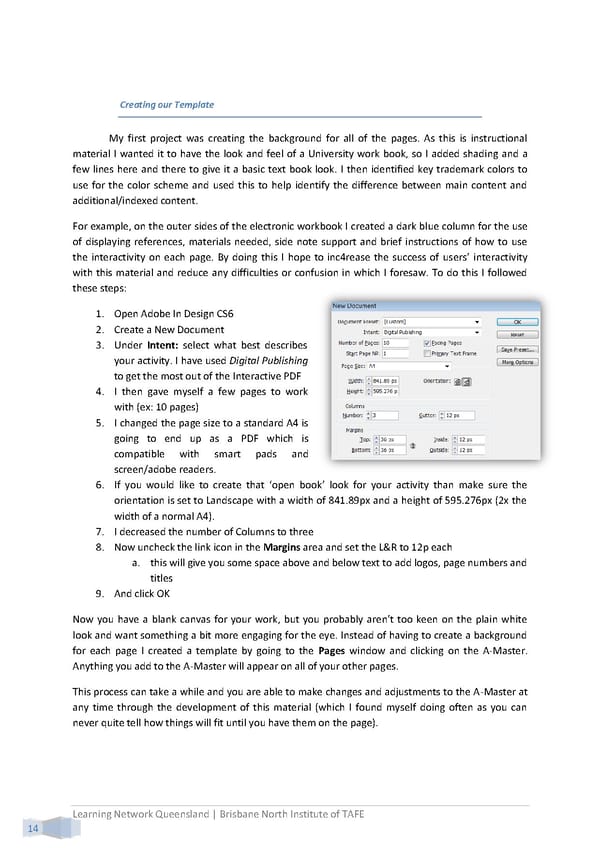
Creating our Template My first project was creating the background for all of the pages. As this is instructional material I wanted it to have the look and feel of a University work book, so I added shading and a few lines here and there to give it a basic text book look. I then identified key trademark colors to use for the color scheme and used this to help identify the difference between main content and additional/indexed content. For example, on the outer sides of the electronic workbook I created a dark blue column for the use of displaying references, materials needed, side note support and brief instructions of how to use the interactivity on each page. By doing this I hope to inc4rease the success of users’ interactivity with this material and reduce any difficulties or confusion in which I foresaw. To do this I followed these steps: 1. Open Adobe In Design CS6 2. Create a New Document 3. Under Intent: select what best describes your activity. I have used Digital Publishing to get the most out of the Interactive PDF 4. I then gave myself a few pages to work with (ex: 10 pages) 5. I changed the page size to a standard A4 is going to end up as a PDF which is compatible with smart pads and screen/adobe readers. 6. If you would like to create that ‘open book’ look for your activity than make sure the orientation is set to Landscape with a width of 841.89px and a height of 595.276px (2x the width of a normal A4). 7. I decreased the number of Columns to three 8. Now uncheck the link icon in the Margins area and set the L&R to 12p each a. this will give you some space above and below text to add logos, page numbers and titles 9. And click OK Now you have a blank canvas for your work, but you probably aren’t too keen on the plain white look and want something a bit more engaging for the eye. Instead of having to create a background for each page I created a template by going to the Pages window and clicking on the A-Master. Anything you add to the A-Master will appear on all of your other pages. This process can take a while and you are able to make changes and adjustments to the A-Master at any time through the development of this material (which I found myself doing often as you can never quite tell how things will fit until you have them on the page). Learning Network Queensland | Brisbane North Institute of TAFE 14
 Building Interactive Content Page 22 Page 24