

Any updates made in the original file are automatically reflected in RELAYTO, helping you deliver always up-to-date, dynamic content without lifting a finger.
Get the Embed link from
OneDrive/Google Sheets
Step 1
Go to OneDrive or Google Sheets and log in with your account, then click Upload > Files.
After it, open the file.
✅ For OneDrive, select your Excel file and open it in Excel Online (Excel for the web).
✅ For Google Sheets, click the file to open it in the browser.
f.png)
Step 2
Then, click "File" in the top-left corner.
✅ In OneDrive Excel Online, click Share and Embed this workbook.
✅ In GoogleSheets, click Share and Publish to web.
Explore short guide from Microsoft on how to use OneDrive online. Click here.
.png)
Step 3
✅ In OneDrive Excel Online, go to Embed, click Generate.
✅ In GoogleSheets, go to Embed, click Publish
.png)
How to Embed in RELAYTO
Step 1
Click the "Studio" button in the top right corner.

Step 2
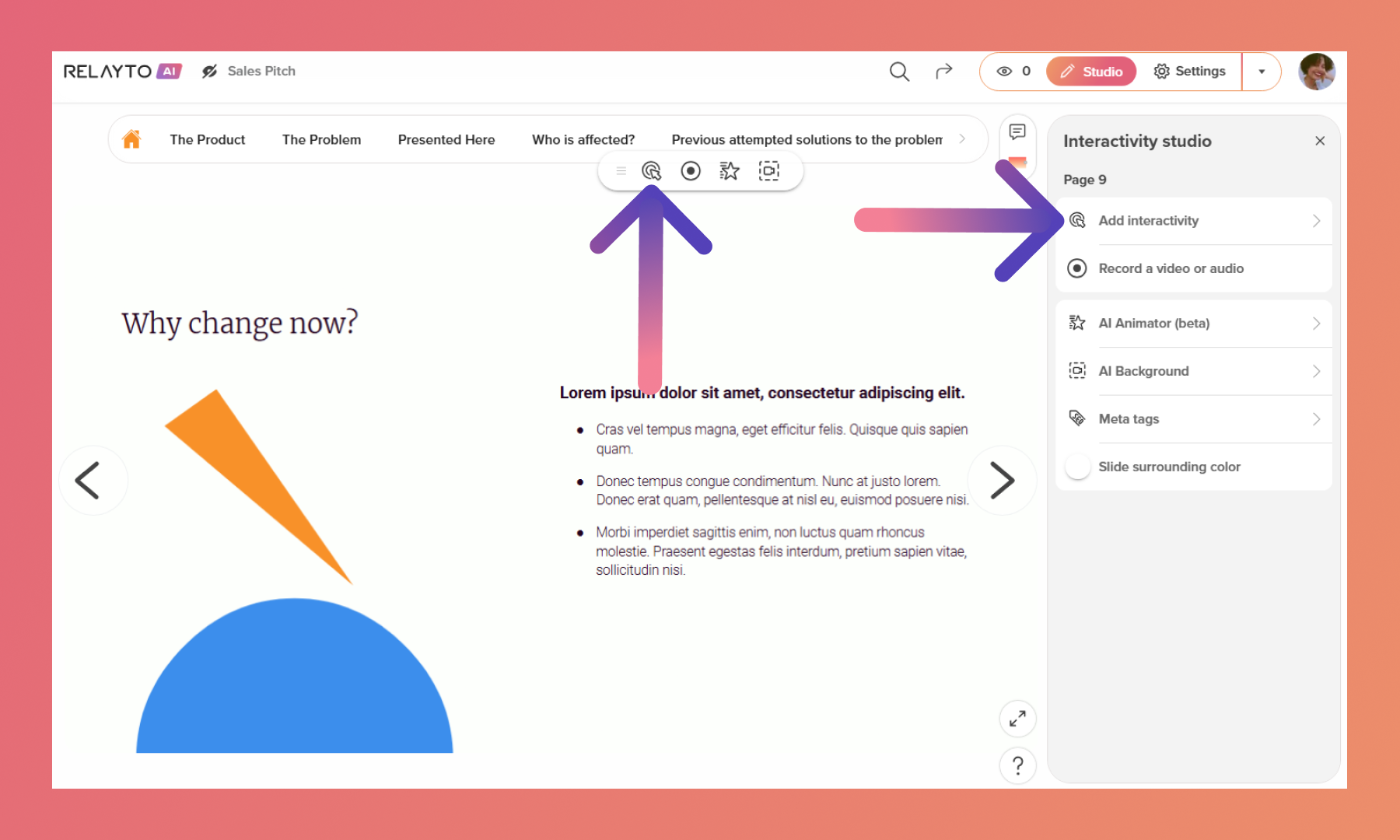
Click the "Add Interactivity" icon on the toolbar at the top middle of the screen or in the Interactive Studio side menu.
Step 3
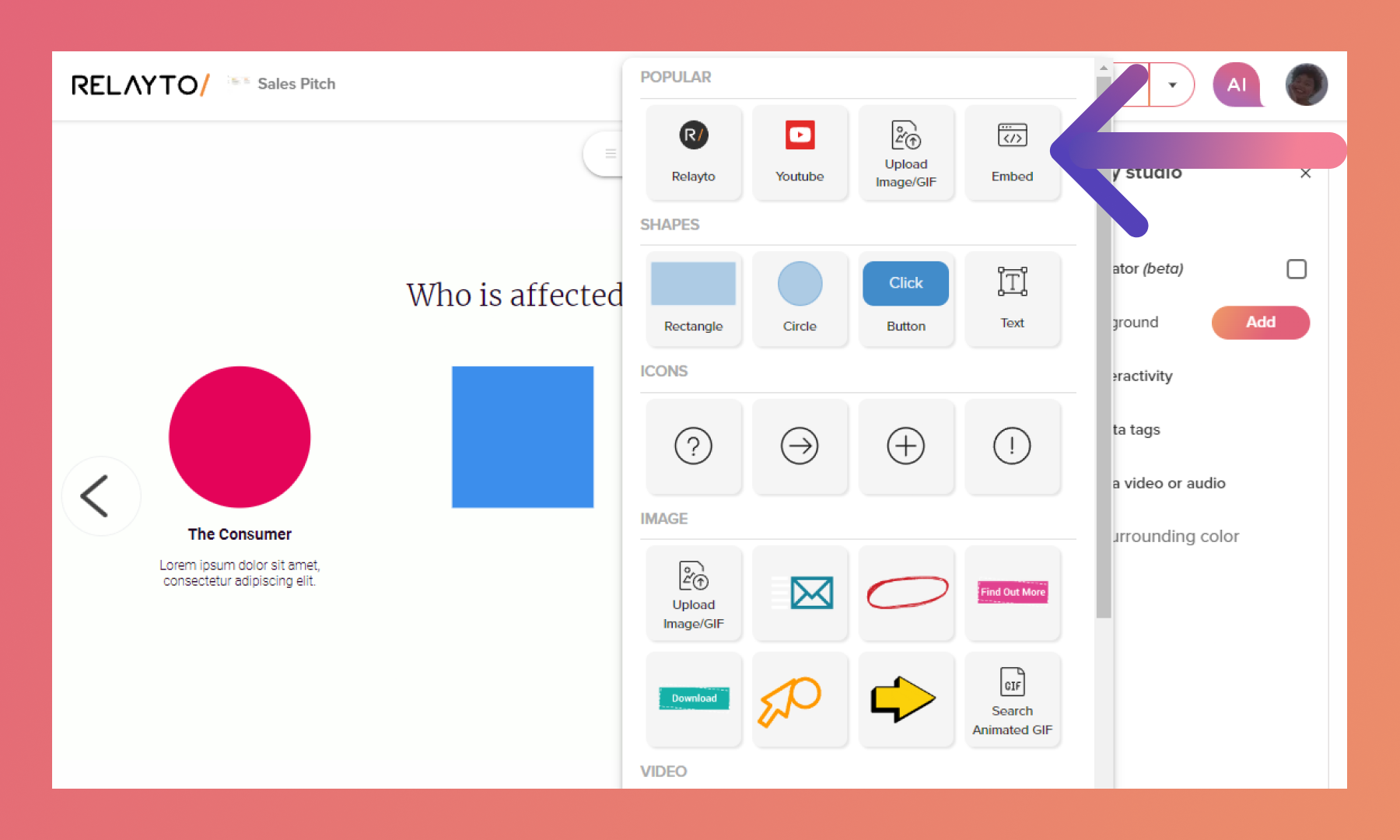
Click the "Embed" option in the Popular section.
Step 4
Enter the link you wish to embed and click "Extract Widget."
RELAYTO also allows you to Embed Code, where you can paste an iframe code.
.png)
Related Articles:
🎉 How to Add GIFs and Stickers
Thank you for joining us in this tutorial! If you have any questions or need help, feel free to email us at support@relayto.com or book a call here.