

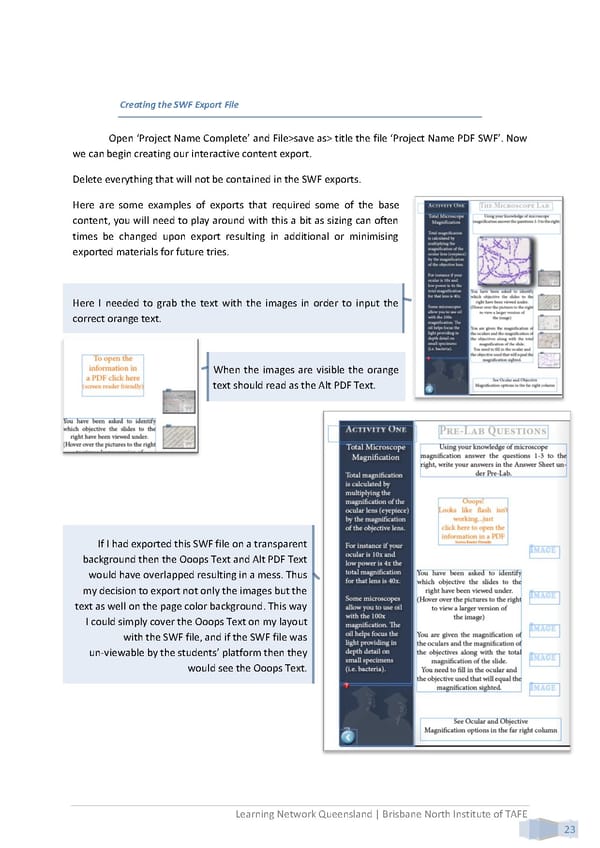
Creating the SWF Export File Open ‘Project Name Complete’ and File>save as> title the file ‘Project Name PDF SWF’. Now we can begin creating our interactive content export. Delete everything that will not be contained in the SWF exports. Here are some examples of exports that required some of the base content, you will need to play around with this a bit as sizing can often times be changed upon export resulting in additional or minimising exported materials for future tries. Here I needed to grab the text with the images in order to input the correct orange text. When the images are visible the orange text should read as the Alt PDF Text. If I had exported this SWF file on a transparent background then the Ooops Text and Alt PDF Text would have overlapped resulting in a mess. Thus my decision to export not only the images but the text as well on the page color background. This way I could simply cover the Ooops Text on my layout with the SWF file, and if the SWF file was un-viewable by the students’ platform then they would see the Ooops Text. Learning Network Queensland | Brisbane North Institute of TAFE 23
 Building Interactive Content Page 31 Page 33