

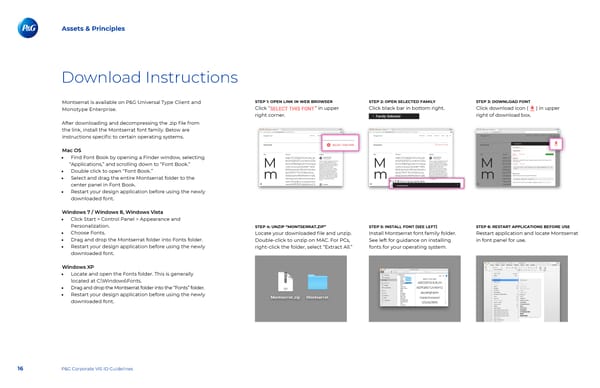
Assets & Principles Download Instructions Montserrat is available on P&G Universal Type Client and STEP 1: OPEN LINK IN WEB BROWSER STEP 2: OPEN SELECTED FAMILY STEP 3: DOWNLOAD FONT Click “ ” in upper Click black bar in bottom right. Click download icon ( ) in upper Monotype Enterprise. right corner. right of download box. After downloading and decompressing the .zip 昀椀le from the link, install the Montserrat font family. Below are instructions speci昀椀c to certain operating systems. Mac OS • Find Font Book by opening a Finder window, selecting “Applications,” and scrolling down to “Font Book.” • Double click to open “Font Book.” • Select and drag the entire Montserrat folder to the center panel in Font Book. • Restart your design application before using the newly downloaded font. Windows 7 / Windows 8, Windows Vista • Click Start > Control Panel > Appearance and Personalization. STEP 4: UNZIP “MONTSERRAT.ZIP” STEP 5: INSTALL FONT (SEE LEFT) STEP 6: RESTART APPLICATIONS BEFORE USE • Choose Fonts. Locate your downloaded 昀椀le and unzip. Install Montserrat font family folder. Restart application and locate Montserrat • Drag and drop the Montserrat folder into Fonts folder. Double-click to unzip on MAC. For PCs, See left for guidance on installing in font panel for use. • Restart your design application before using the newly right-click the folder, select “Extract All.” fonts for your operating system. downloaded font. Windows XP • Locate and open the Fonts folder. This is generally located at C:\Windows\Fonts. • Drag and drop the Montserrat folder into the “Fonts” folder. • Restart your design application before using the newly downloaded font. 16 P&G Corporate VIS ID Guidelines
 P&G Brand Book Page 15 Page 17