

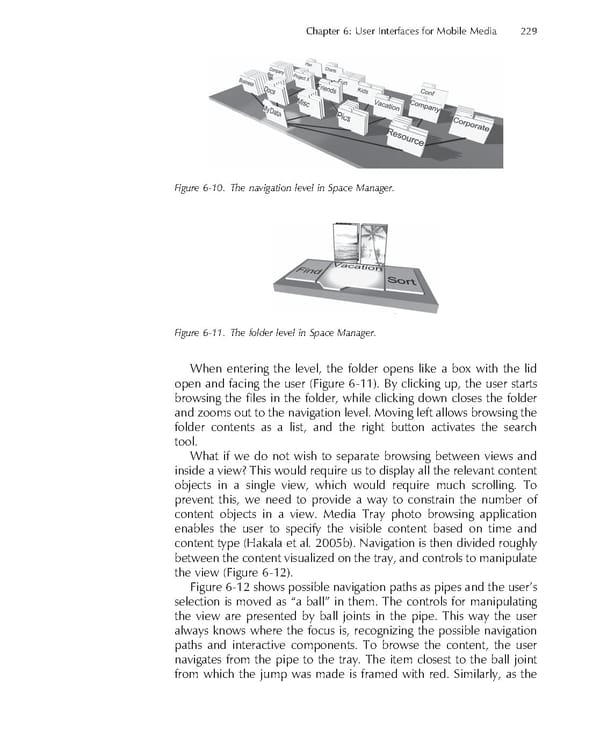
Chapter 6: User Interfaces for Mobile Media 229 Figure 6-10. The navigation level in Space Manager. Figure 6-11. The folder level in Space Manager. When entering the level, the folder opens like a box with the lid open and facing the user (Figure 6-11). By clicking up, the user starts browsing the fi les in the folder, while clicking down closes the folder and zooms out to the navigation level. Moving left allows browsing the folder contents as a list, and the right button activates the search tool. What if we do not wish to separate browsing between views and inside a view? This would require us to display all the relevant content objects in a single view, which would require much scrolling. To prevent this, we need to provide a way to constrain the number of content objects in a view. Media Tray photo browsing application enables the user to specify the visible content based on time and content type (Hakala et al. 2005b). Navigation is then divided roughly between the content visualized on the tray, and controls to manipulate the view (Figure 6-12). Figure 6-12 shows possible navigation paths as pipes and the user’s selection is moved as “a ball” in them. The controls for manipulating the view are presented by ball joints in the pipe. This way the user always knows where the focus is, recognizing the possible navigation paths and interactive components. To browse the content, the user navigates from the pipe to the tray. The item closest to the ball joint from which the jump was made is framed with red. Similarly, as the
 Personal Content Experience Page 252 Page 254