

How to Augment, Access, Analyze your Docs
New User Tutorial: 3 steps to start using RELAYTO
AUGMENT ACCESS ANALYZE Let’s get started We've put together a RELAYTO/ document about using RELAYTO/ How to go from a blank canvas to a high-impact interactive document experience in 3 steps.

AUGMENT Document Creation
Log into Your Premium Account 1. Click on your company logo in the top left-hand corner of the dashboard 2. Enter your username and password For more information about RELAYTOs Premium Accounts i please contact support@relayto.com
Start a New Document Convert PDFs into an interactive experience & measure the impact of your ideas Transform your: ● Presentations ● Ebooks ● Reports ● Proposals ● Guides ● Handbooksks
Start a New Document Create online document (Beta) Quickly create web documents. Best used for: ● Resource Libraries ● FAQs ● Lists ● Blog Posts ● News Articles ● Living Documents Create multimedia presentation (Beta) Best used for: ● Photo Slideshow ● Video Libraries ● Many Documents in One Place
Create a Hub 1. Click on NEW HUB 2. Select the Author of the Hub 3. Add a cover image to the hub 4. Click SAVE in the upper right-hand corner
Creating a Table of Contents Populate IMPORT PDF BOOKMARKS Bookmarks that are added to the document before uploading it onto RELAYTO will be extracted IMPORT PAGE TITLES RELAYTO extracts the titles of the uploaded pages or slides REMOVE ALL Deletes all the extracted titles
Table of Contents from page titles How to video

Table of Contents from PDF Bookmarks How to video

Manually Creating Table of Content How to video
Present Navigation: Choose how the table of contents will look from the following options SIDEBAR - OUTLINE: Table of contents will be text-based TOP MENU: SIDEBAR - THUMBNAILS: Text in the table of contents Table of contents will will be transformed into a be image-based top menu. Nestled items will become sub-items in the menu
SIDEBAR - OUTLINE Table of Contents view options TOP MENU SIDEBAR - THUMBNAILS
Organize Organize Pages: Remove pages of the document by Add pages to the table of selecting the contents by selecting delete icon the bookmark icon Rearrange pages by dragging thumbnails of pages into place
Organize Titles order: Single Nesting
Organize Titles order: Multiple Nesting

Adding Interactivity What is Interactivity? Interactivity is an additional layer of rich media to your existing slides or pages. Interactivity comes in the following forms: SHAPES BUTTONS TEXT WIDGETS e.g. youtube or Social Media embeds VIDEOS IMAGES e.g. icons, GIFs
Adding Effects Animating effects An animation effect triggered by default. Animation effect triggered when the page/slide is scrolled to. An animation effect triggered when hovered over. An animation effect Effect will be triggered when clicked on.
UP WHIRL SHRINK BOUNCE FADE EFFECT LEFT RIGHT EXAMPLES ZOOM FLIP SWOOP SLIDE DOWN
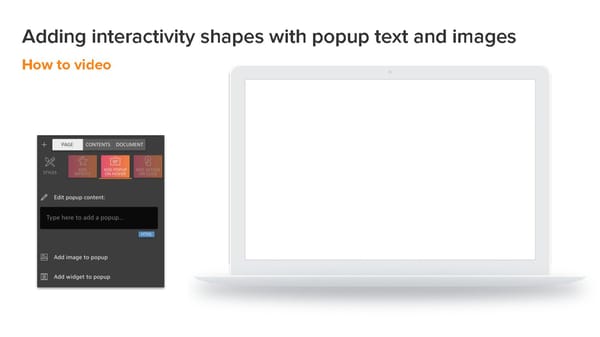
Adding interactivity shapes with popup text and images How to video
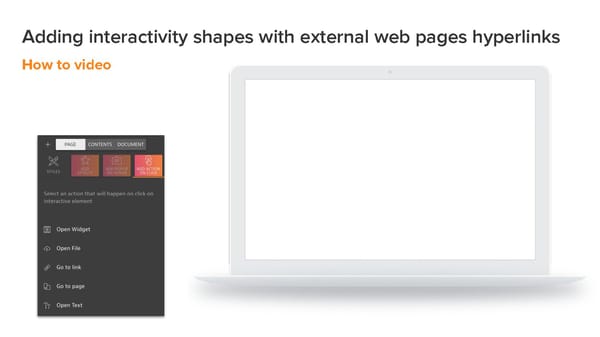
Adding interactivity shapes with external web pages hyperlinks How to video
Adding Call to Action buttons with external web pages hyperlinks How to video
Adding Images and Icons Adding Image Interactivity from PowerPoint
Adding Widgets Embedding videos, GIFs, social media profiles and posts
ACCESS Document Sharing Options
URL Share Option Reader Sharing
Sharing documents as URLs How to video
Create a Personalized Link Author Sharing: Send your documents via email with a personalised messages to your readers, create custom URLs, receive notification when they open the document and track their engage analytics individually.
Send personalised email invites to your readers How to video
Creating customized links and short URLs
Privacy, Security & Control Settings Where to find DEDICATED PRIVACY SETTINGS: The Privacy Settings for documents and hubs can be changed at any time by clicking the Privacy Settings and Access Icon ( ). This will open the dedicated options box, where you can add/remove users, send personalized links and change the Privacy Settings IN EDITOR: The security settings for a document can also be changed inside the editor, under the “main” sub-section. From here, you can only change the Privacy Setting.
Public WHO CAN ACCESS? Anybody, once the document/hub becomes public WHEN TO USE Marketing & public customer-facing content. Public documents will appear in search results on most search engines (e.g. Google, Bing) and RELAYTO/.
Unlisted WHO CAN ACCESS? Only those with access to the document or hub URL. This is safer than sending PDF via email since the author can always update content, monitor the URL ad, if needed, change/revoke/expire access. WHEN TO USE If your content is intended for a limited audience. Unlisted documents/hubs allow frictionless access to the content. You will need to share the document/hub URL with people.
Require Email to view WHO CAN ACCESS? Only those with access to the document or hub URL. This is safer than sending PDF via email since the author can always update content, monitor the URL ad, if needed, change/revoke/expire access. WHEN TO USE If your content is intended for a limited audience. Unlisted documents/hubs allow frictionless access to the content. You will need to share the document/hub URL with people.
Password Protected WHO CAN ACCESS? Only those with access to the document/hub URL AND password to the it. WHEN TO USE Multiple users in the same organization/team. Offers some control, but relatively low degree of friction.
Private WHO CAN ACCESS? Only those who simultaneously meet three conditions: 1. Have access to the document/hub URL 2. Have been authenticated on RELAYTO/ 3. Have been granted access to the document/hub WHEN TO USE If your document/hub has highly confidential data and is intended only for certain individuals, private documents allow you to limit access to certain people.
ANALYZE Measure Engagement & Conversion Data
Where to find DOCUMENT ANALYTICS: The document analytics can be accessed by clicking on the analytics icon ( ). This will open the analytics dashboard, where you can view analytics for a document by content, interactions, geographical spread, viewing devices and by day You will need to have access to a document either as an editor or owner to view the i analytics and be signed into your RELAYTO account
Overview Metrics | Dashboard
By Content Data for every page/slide in the document RELAYTO/ helps you identify which pages/slides perform best: VIEWS Average views per page INTERACTIONS ● Average elements per page ● Average popups views per element ● Average clicks per element AVERAGE TIME Average time per page TOTAL TIME Total time spent on average per page
By Day Data viewers over time RELAYTO/ helps you identify which days performed the best: VISITORS Average visitors per day VISITORS BY DAY Average visits per day PAGES PER VISIT Average page views per visit per day TOTAL TIME Average time spent per day
By Location Document geographical spread Know from which countries & cities your document is being accessed from. BY COUNTRY BY CITY BY LANGUAGE
By Devices Document viewing devices Know whether your document is being experienced on mobile or laptop, this allows you to optimise the document accordingly.