RELAYTO Best Practices for Design
Estimated reading time - 5 minutes | Guidelines about creating the content optimized for better experience in RELAYTO
CREATE GREAT CONTENT OPTIMIZED FOR RELAYTO Best Practices for Live Presentations, Leave Behinds, Self-Paced Guides, Proposals & more so that your content becomes interactive out-of-the-box with RELAYTO Academy
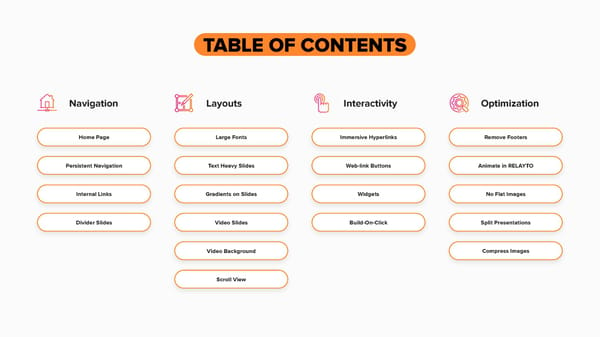
TABLE OF CONTENTS Navigation Layouts Interactivity Optimization Home Page Large Fonts Immersive Hyperlinks Remove Footers Persistent Navigation Text Heavy Slides Web-link Buttons Animate in RELAYTO Internal Links Gradients on Slides Widgets No Flat Images Divider Slides Video Slides Build-On-Click Split Presentations Compress Images Video Background Scroll View
NAVIGATION Home Page Persistent Navigation Internal Links Divider Slides
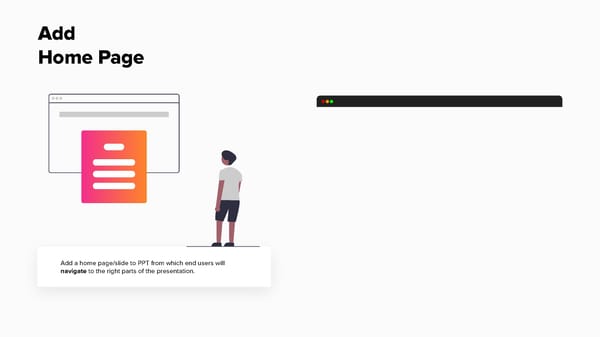
Add Home Page Add a home page/slide to PPT from which end users will navigate to the right parts of the presentation.
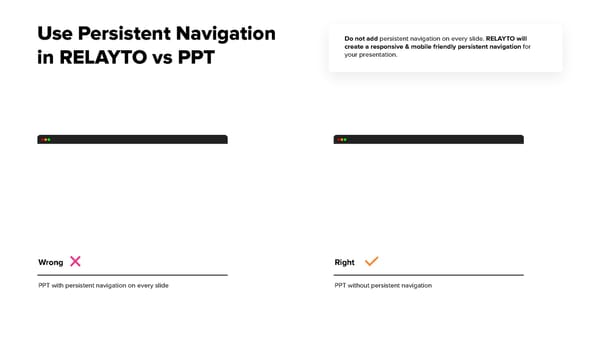
Use Persistent Navigation Do not add persistent navigation on every slide. RELAYTO will create a responsive & mobile friendly persistent navigation for your presentation. in RELAYTO vs PPT Wrong Right PPT with persistent navigation on every slide PPT without persistent navigation

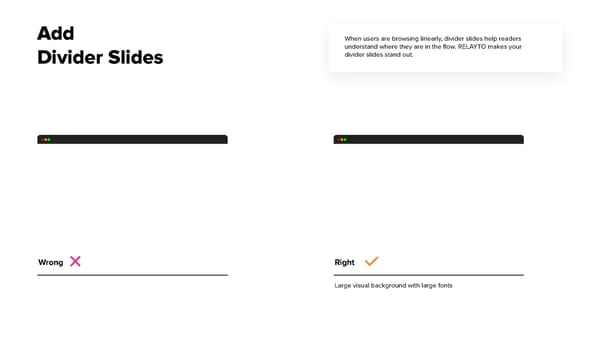
Add When users are browsing linearly, divider slides help readers understand where they are in the flow. RELAYTO makes your divider slides stand out. Divider Slides Wrong Right Large visual background with large fonts
LAYOUTS Large Fonts Text Heavy Slides Gradients on Slides Video Slides Video Background Scroll View
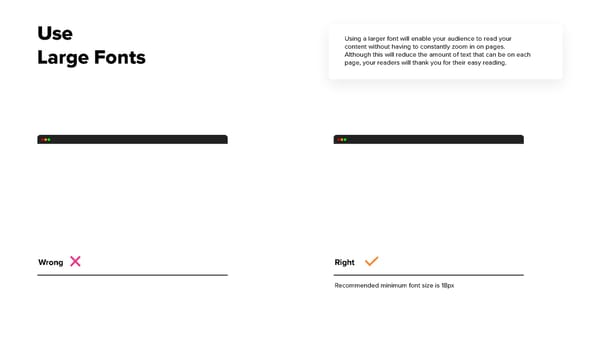
Use Using a larger font will enable your audience to read your content without having to constantly zoom in on pages. Although this will reduce the amount of text that can be on each Large Fonts page, your readers will thank you for their easy reading. Wrong Right Recommended minimum font size is 18px
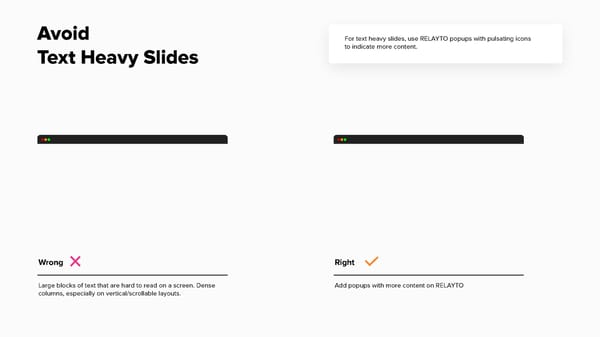
Avoid For text heavy slides, use RELAYTO popups with pulsating icons to indicate more content. Text Heavy Slides Wrong Right Large blocks of text that are hard to read on a screen. Dense Add popups with more content on RELAYTO columns, especially on vertical/scrollable layouts.
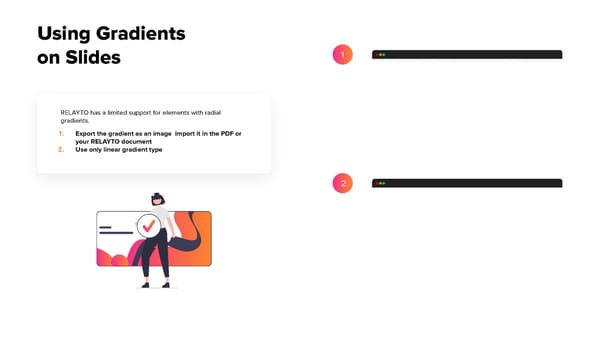
Using Gradients 1 on Slides RELAYTO has a limited support for elements with radial gradients. 1. Export the gradient as an image import it in the PDF or your RELAYTO document 2. Use only linear gradient type 2
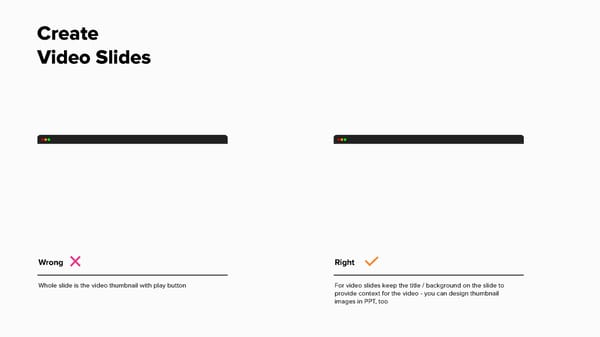
Create Video Slides Wrong Right Whole slide is the video thumbnail with play button For video slides keep the title / background on the slide to provide context for the video - you can design thumbnail images in PPT, too
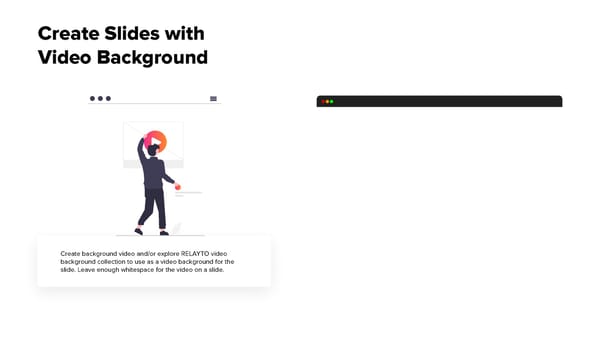
Create Slides with Video Background Create background video and/or explore RELAYTO video background collection to use as a video background for the slide. Leave enough whitespace for the video on a slide.
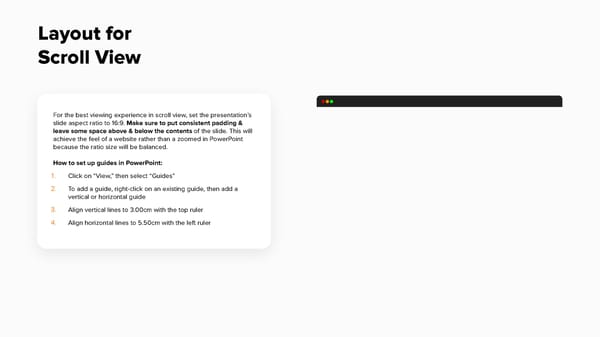
Layout for Scroll View For the best viewing experience in scroll view, set the presentation’s slide aspect ratio to 16:9. Make sure to put consistent padding & leave some space above & below the contents of the slide. This will achieve the feel of a website rather than a zoomed in PowerPoint because the ratio size will be balanced. How to set up guides in PowerPoint: 1. Click on “View,” then select “Guides” 2. To add a guide, right-click on an existing guide, then add a vertical or horizontal guide 3. Align vertical lines to 3.00cm with the top ruler 4. Align horizontal lines to 5.50cm with the left ruler
INTERACTIVITY Immersive Hyperlinks Web-link Buttons Widgets Build-On-Click
Add Hyperlinks to Generate Immersive Experiences Do add hyperlinks to videos, articles and other websites. RELAYTO will automatically create an immersive preview or full screen experience for select links. Right Hyperlinked thumbnails to external resources
Design Web-like Buttons / Actions Wrong When creating hyperlinks and call-to-actions, make them feel like Web buttons, not like an average PowerPoint shape. They need whitespace, color & size contrast to generate desired behaviors. CONTACT US LEARN MORE EXPLORE Right CONTACT US LEARN MORE EXPLORE
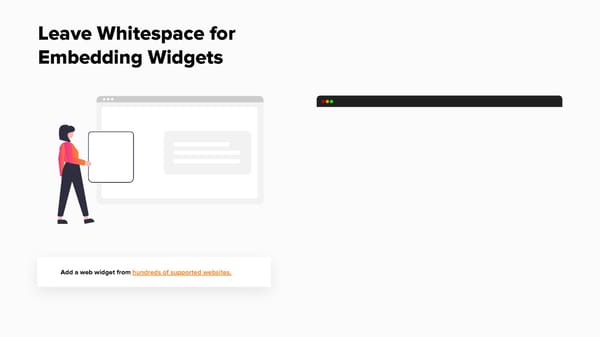
Leave Whitespace for Embedding Widgets Add a web widget from hundreds of supported websites.

OPTIMIZATION Remove Footers Animate in RELAYTO No Flat Images Split Presentations Compress Images
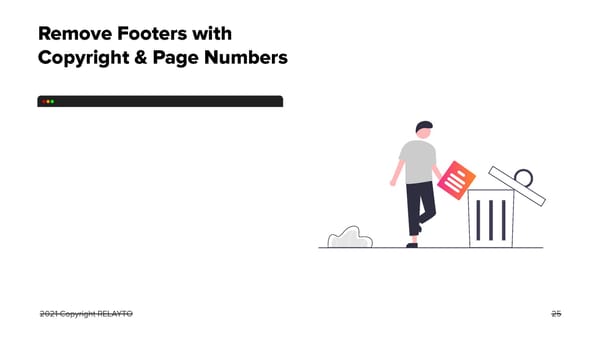
Remove Footers with Copyright & Page Numbers 2021 Copyright RELAYTO 25
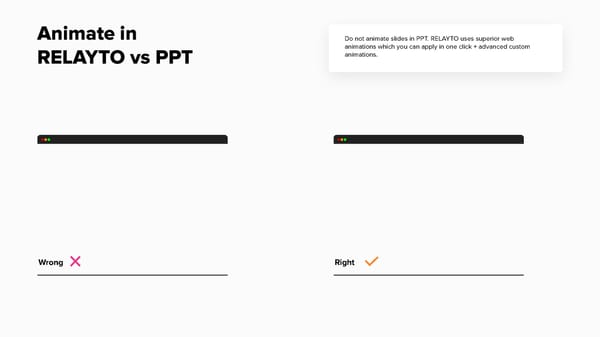
Animate in Do not animate slides in PPT. RELAYTO uses superior web animations which you can apply in one click + advanced custom animations. RELAYTO vs PPT Wrong Right
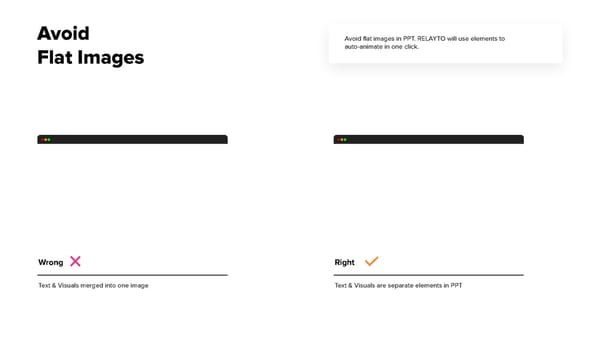
Avoid Avoid flat images in PPT. RELAYTO will use elements to auto-animate in one click. Flat Images Wrong Right Text & Visuals merged into one image Text & Visuals are separate elements in PPT
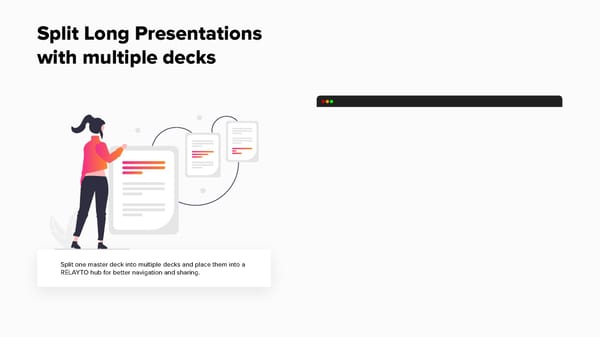
Split Long Presentations with multiple decks Split one master deck into multiple decks and place them into a RELAYTO hub for better navigation and sharing.
Compress Images in PPT The smaller your PPT/PDF file the faster the web loading experience will be.