

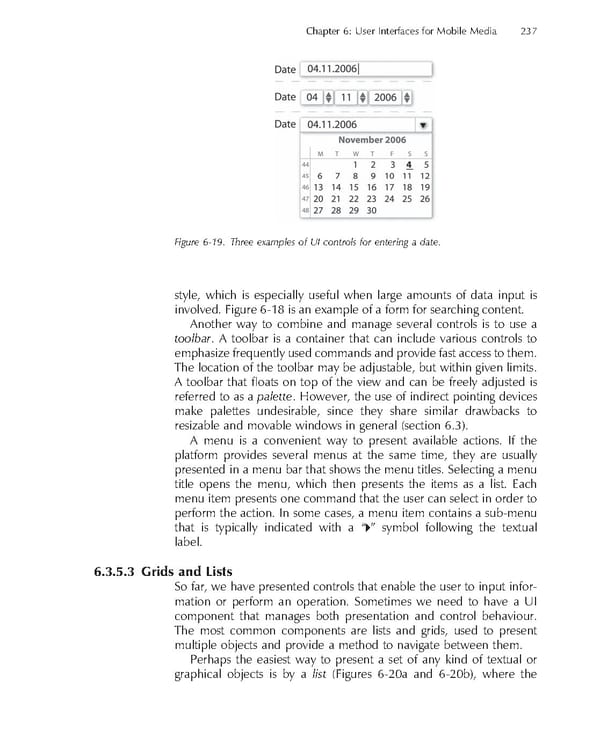
Chapter 6: User Interfaces for Mobile Media 237 Figure 6-19. Three examples of UI controls for entering a date. style, which is especially useful when large amounts of data input is involved. Figure 6-18 is an example of a form for searching content. Another way to combine and manage several controls is to use a toolbar. A toolbar is a container that can include various controls to emphasize frequently used commands and provide fast access to them. The location of the toolbar may be adjustable, but within given limits. A toolbar that fl oats on top of the view and can be freely adjusted is referred to as a palette. However, the use of indirect pointing devices make palettes undesirable, since they share similar drawbacks to resizable and movable windows in general (section 6.3). A menu is a convenient way to present available actions. If the platform provides several menus at the same time, they are usually presented in a menu bar that shows the menu titles. Selecting a menu title opens the menu, which then presents the items as a list. Each menu item presents one command that the user can select in order to perform the action. In some cases, a menu item contains a sub-menu that is typically indicated with a “ ” symbol following the textual label. 6.3.5.3 Grids and Lists So far, we have presented controls that enable the user to input infor- mation or perform an operation. Sometimes we need to have a UI component that manages both presentation and control behaviour. The most common components are lists and grids, used to present multiple objects and provide a method to navigate between them. Perhaps the easiest way to present a set of any kind of textual or graphical objects is by a list (Figures 6-20a and 6-20b), where the
 Personal Content Experience Page 260 Page 262