

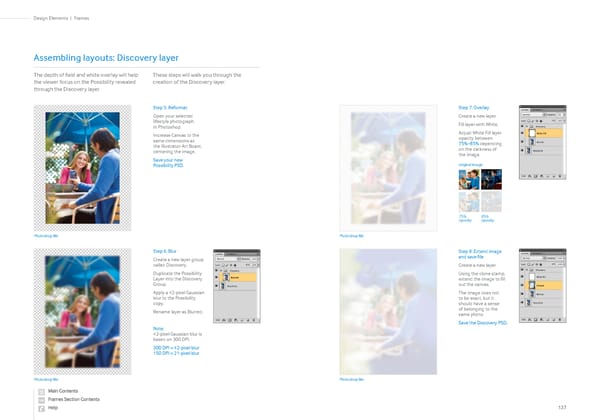
Step 5: Reformat Open your selected lifestyle photograph in Photoshop. Increase Canvas to the same dimensions as the Illustrator Art Board, centering the image. Save your new Possibility PSD. Step 6: Blur Create a new layer group called Discovery. Duplicate the Possibility Layer into the Discovery Group. Apply a 42-pixel Gaussian blur to the Possibility copy. Rename layer as Blurred. Note: 42-pixel Gaussian blur is based on 300 DPI. 300 DPI = 42-pixel blur 150 DPI = 21-pixel blur Assembling layouts: Discovery layer The depth of field and white overlay will help the viewer focus on the Possibility revealed through the Discovery layer. These steps will walk you through the creation of the Discovery layer. Step 7: Overlay Create a new layer. Fill layer with White. Adjust White Fill layer opacity between 75%–85% depending on the darkness of the image. Step 8: Extend image and save file Create a new layer. Using the clone stamp, extend the image to fill out the canvas. The image does not to be exact, but it should have a sense of belonging to the same photo. Save the Discovery PSD. Photoshop file Photoshop file Photoshop file Photoshop file original image 75% opacity 85% opacity 137 Frames | Design Elements
 Samsung Brand Book Page 67 Page 69