
Interactive PDFs that give every page a next step
Make your PDFs and decks interactive without a developer. Add video, a lead form or a button to book a call, and readers act on the page itself.
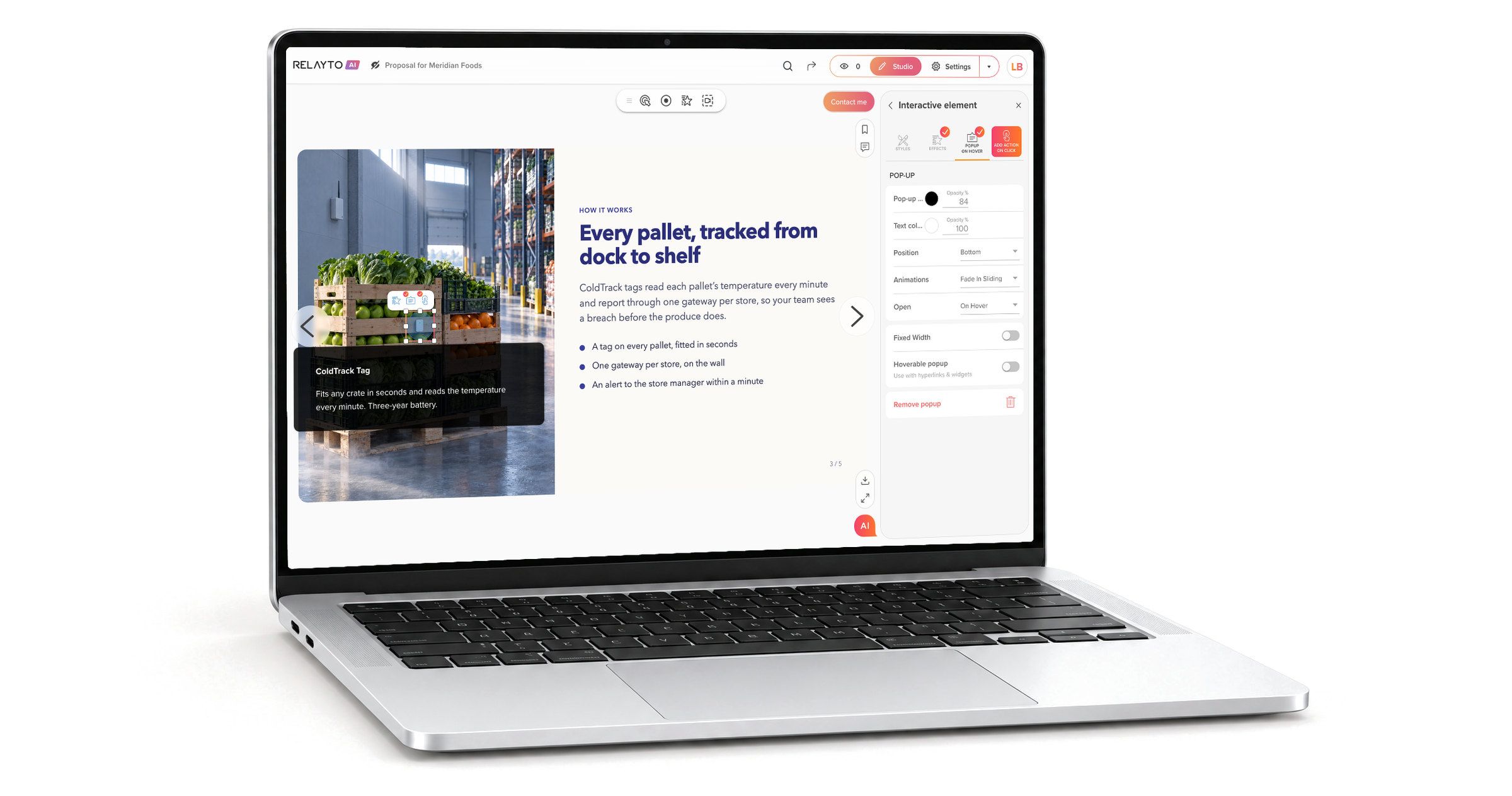
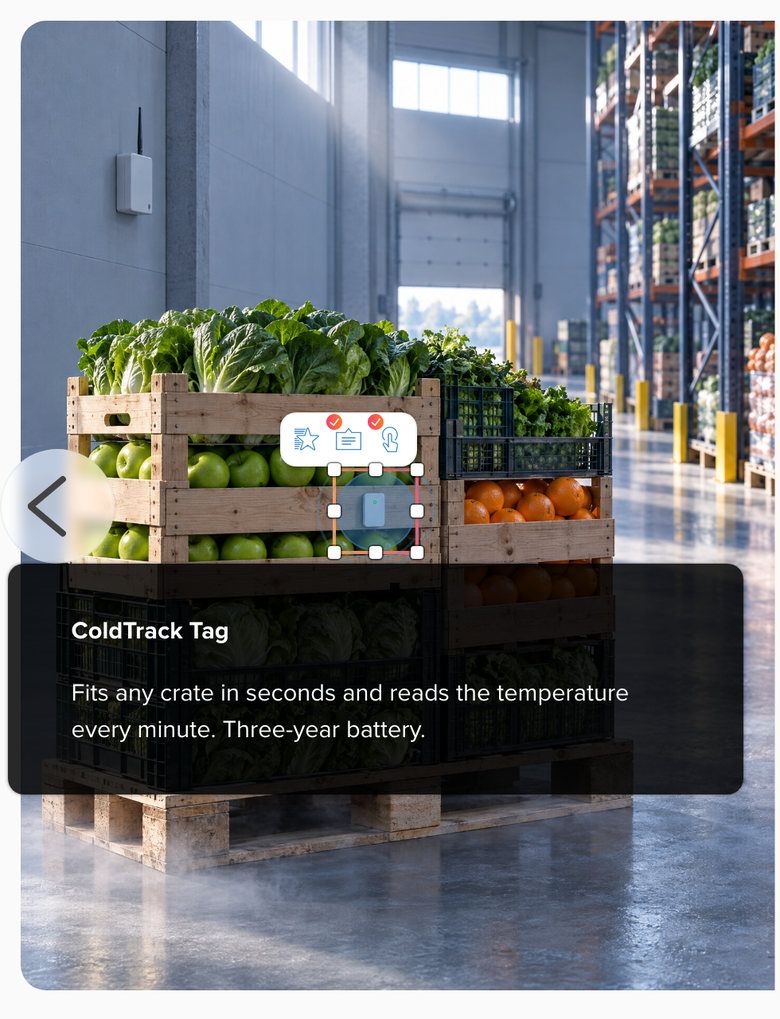
Omnicom Group saw an 1100% increase in target account engagement with RELAYTO.





Add video and your apps to the PDF
Upload your own video, audio and GIFs, or paste a link from any of 880+ providers. What you add plays or opens on the page, so readers stay in the document.
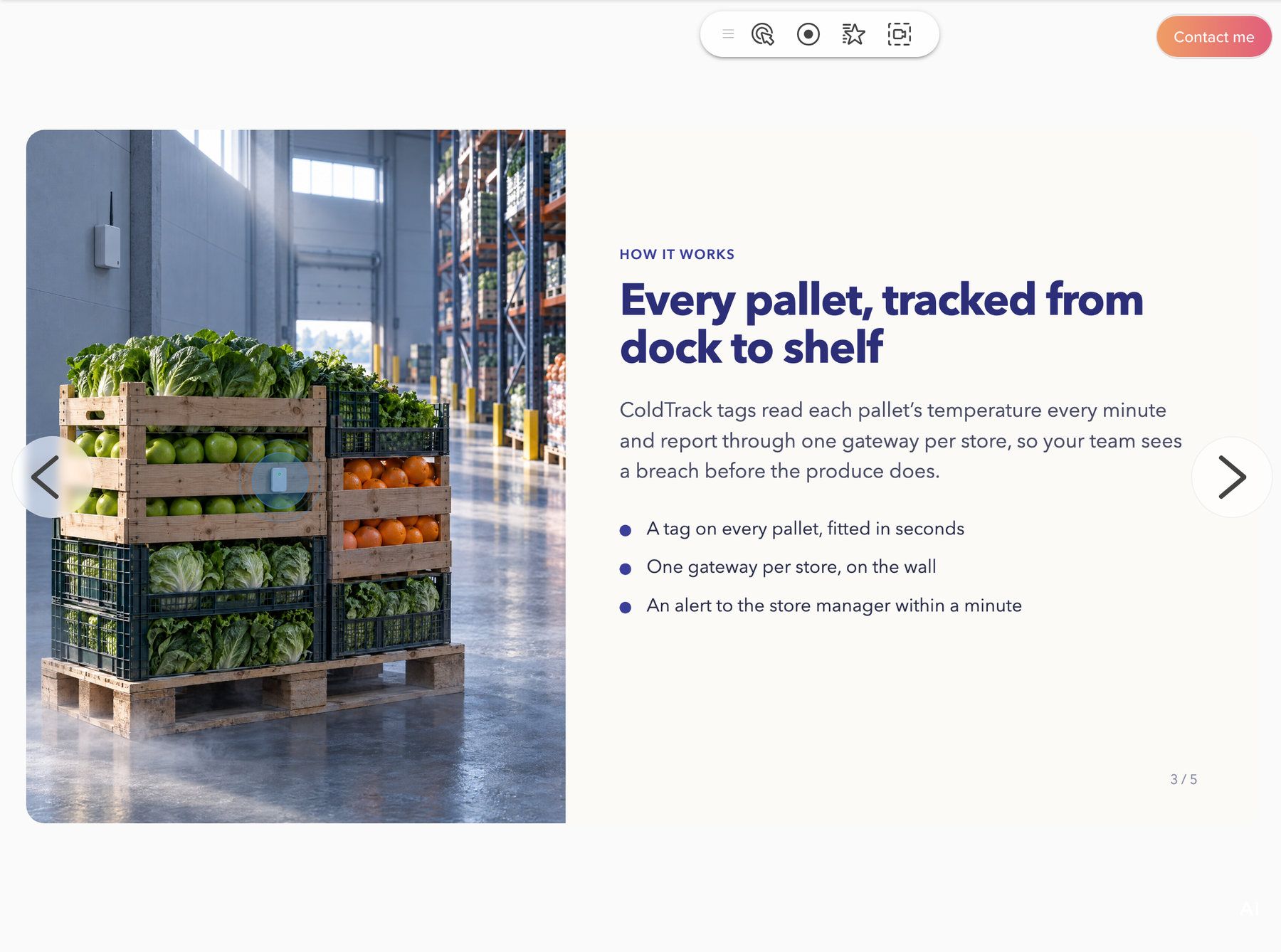
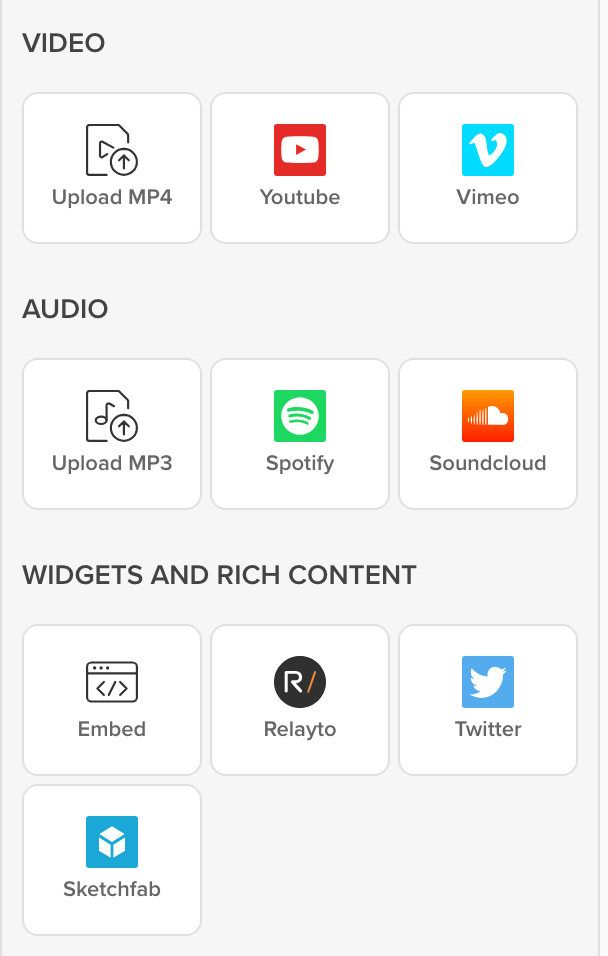
Video and audio
Upload MP4 and MP3, or add YouTube, Vimeo, Spotify and SoundCloud.
Other apps by link
Typeform forms, Miro boards, Figma files and Tableau dashboards, from their links.
Your own code
HTML, CSS and scripts for what no provider offers, from people cleared to add it.
“Since using RELAYTO, I’ve seen a clear shift—our interactive content cut down early demos, boosted engagement, and now supports 40% of our deals.”
 Łukasz HińczSenior Presales Engineer, Alpega Group40% · Presales & proposals
Lead forms on the page buyers are reading
Ask for an email address before the document opens, or put a form on the page where the buyer reads the pricing. Every submission is saved, and you choose where it goes.
Lead capture for demand generation
1Email required
 Lena Brandt shared this document with you. Please enter your info to continue. This information will only be shared with Lena Brandt.
2Pilot pricing requestSearch answersLast 30 days
- DWDana WhitfieldMeridian Foods · 40 stores3Sent fromProposal for Meridian Foods, page 3DeliveryEmailed to deals@yourcompany.comSent to your CRMSaved as a lead
- TBTomas BergHalden Fresh · 12 stores
- ASAmira SatoNorthgate Grocers · 85 stores
- BABen AshworthCorrie Dairy · 6 stores
- The email gate: an address, then optional name, company and consent.
- Every submission on the Forms page, newest first, with search.
- Where each one came from, and where it went.
See what readers clicked on each page
Content analytics count the hovers and clicks on every hotspot, video and button, so you see which parts of a document readers acted on.
1129 InteractionsPage 3 · Every pallet, tracked from dock to shelf
2Clicks58
- ColdTrack Tag hotspot31
- Video message18
- Gateway hotspot9
Popups59
- ColdTrack Tag44
- Gateway15
CTA12
- Book a pilot call12
Download CSV3
- Every interaction on the page, in total.
- Each element by type: hotspot clicks, popups opened, the call to action.
- The counts as a CSV, for your own reporting.
Everything Interactivity Studio does
- Hotspots & call-outs
- Shapes, icons, images and text on any page, animated on load, hover or click.
- Popups & lightboxes
- Call-outs open on hover; videos, images and widgets open full screen over the page.
- GIFs, video & audio
- Upload MP4, MP3 or GIFs, search animated GIFs, or add YouTube, Vimeo or Spotify.
- 880+ embeds & widgets
- Paste a link from 880+ providers, Typeform, Miro, Figma and Tableau among them.
- Forms & gated forms
- Forms on any page, or an email gate before the document opens.
- Calendar & CRM widgets
- Calendly, HubSpot meetings and HubSpot forms work inside the page.
- Calls-to-action: buttons, stickers, sticky bars
- A button, icon or sticker in the reader’s bar on every page; nine actions.
- Custom HTML / CSS / JS
- Your own HTML, styles and scripts, added by accounts cleared for code.
- Comments & annotations
- Comments on each page, with replies and email alerts, from your team or readers.
- In-app video recording
- Record video with sound, or audio alone, in the editor, straight onto the page.
Who adds code, and where lead data goes
Every form submission is saved in RELAYTO, wherever else you send it.
SOC 2 Type 2, GDPR, HIPAA and CCPA, documented in the Trust Center.
How Content Security works- Code only from people you clear
- Scripts and HTML come only from cleared accounts, or pages on your white-labelled domain.
- Spam protection on every form
- A bot trap and a rate limit are always on; a captcha is optional.
- Signed deliveries
- Submissions sent to another app carry a signature your system can check.
- Submissions you control
- Search, export or delete any submission, and choose who each form emails.
- Consent at the gate
- The email gate can add name and company fields and your own consent checkbox.
- Forms run by admins
- Only workspace admins create forms and decide where their submissions go.
From document to first lead
Your team adds everything in the RELAYTO editor, on documents already in your workspace. There is nothing to install.
- Step 1
Open a document
Any PDF, deck or page in RELAYTO, or a new one.
- Step 2
Make it interactive
Add hotspots, media, forms and buttons from one panel, or record a video.
- Step 3
Connect the form
Choose who is emailed and which app receives each submission.
- Step 4
Share and watch
Send the link, then see what readers hover over and click.
Pages can carry YouTube, Vimeo, Spotify, SoundCloud, Typeform, Calendly, HubSpot meetings and forms, Miro and Tableau; submissions go to email, a CSV export, or your CRM or another app through a webhook. See every integration
Works with the rest of RELAYTO
- PDF to WebPDFs and decks as web pagesBring in the PDFs and decks you have, ready for video, forms and buttons.
- Content ExperienceDocuments that read aloud and answer questionsThe web reader that shows your hotspots, forms and buttons on any screen.
- AnalyticsSee who read what, page by pageHovers and clicks per element, beside who read which pages and for how long.
- HubsDigital sales rooms and portalsPut the interactive proposal in a digital sales room, beside the buyer’s other documents.
Common questions
What an interactive PDF is and how to make one, then your team’s roles, form data, gates and phones.
What is an interactive PDF?
An interactive PDF is a PDF readers can do something with: click a link or a button, play a video, fill in a form or open a note. Many PDF apps handle these inconsistently, especially on phones. RELAYTO adds them to the web version of your PDF, so they work in the browser on a laptop or a phone. A reader who downloads it gets the plain PDF.
How do I make a PDF interactive?
Upload the PDF to RELAYTO and open it in the editor. From one panel you add hotspots, video, forms and buttons, place each one on the page and choose what it does when a reader hovers or clicks. You do not need Acrobat, InDesign or a developer, and PowerPoint decks work the same way.
Can I add a video to a PDF?
Yes: upload an MP4, paste a YouTube or Vimeo link, or record a video message in the RELAYTO editor with your camera and microphone. Readers watch it without leaving the document. Audio works the same way, from an MP3, Spotify or SoundCloud.
Who on our team can add interactive elements?
The document’s owners and editors add hotspots, popups, video and buttons from one panel in the RELAYTO editor, and workspace admins create the forms. Viewers only read, and people with the comment role can also comment. Custom HTML, CSS and scripts come only from accounts cleared to add code.
Where do form submissions go?
Every submission is saved in RELAYTO, where you can search, export or delete it. Each form can also email the people you choose, save the person as a lead on the document they were reading, and send the answers on to your CRM or another app through a signed webhook.
Can we gate a PDF behind a lead form?
Yes, to capture leads. A document can ask for an email address before it opens, with optional name and company fields and your own consent text to tick, or carry a form on any page. The email gate saves every reader as a lead, and a form can too. A gate is not access control: to keep a document private, use a password or invitations.
Does an interactive PDF work on phones?
Yes. Hotspots, popups, video, forms and buttons work in the browser on a phone too, so readers do not need a PDF app. On a touch screen, a call-out that opens on hover on a laptop opens on tap.
Can we see what readers clicked?
Yes. Content analytics count the hovers and clicks on every hotspot, video and button, page by page, and you can download the counts as a CSV. Form submissions and leads sit beside them.
Which page should ask for the meeting?
Bring a proposal or brochure you already send, and we will show you which of its pages could carry a lead form or a button to book the call.